TestComplete issues with Chrome 113
Hey, this is a general message about TestComplete issues with Chrome 113 Please note that the current version of our product may experience issues when used with Google Chrome 113. We apologize for any inconvenience this may cause. Our team identified this is Chrome issue and we are working on a permanent fix. We appreciate your patience as we work through this issue. The dev team on our side is already working to solve the problem. We expect the problem to be solved by the middle of next week. More updates will be provided here in this thread. Really appreciate your patience and sorry for inconveniences. Best regards, Pawel Mularczyk Product Manager for TestComplete18KViews6likes139Comments
TypeError: Sys.WaitBrowser is not a function - Caused by DIsabled Extension
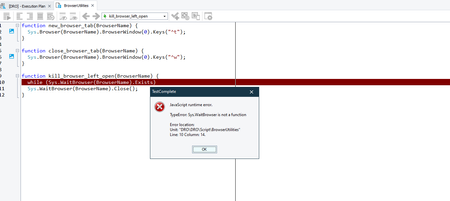
I had something odd happen, and I was able to resolve it, but I am not sure why it occurred. So, I thought I would share it with others who may run across the same issue, since I was not able to find any information in the forums. I restarted my computer, after fully closing out of TestComplete. After I opening TestComplete and my Project file, when I ran a test I had run earlier I got a "TypeError: Sys.WaitBrowser is not a function" dialog as shown here: This particular function has not been changed in years, so it was puzzling why it suddenly stopped working and would not identify my open browser window. Turns out, somehow in the restart of TestComplete or my computer that the Web Module was disabled. After an hour of wasted time, I finally figured out that was the issue. To resolve, go to File --> Install Extensions --> Enable the Web module... This occurred in Version:15.49.6.7 x64776Views4likes2Comments
From Confused to Confident: Master XPath for Web Testing
Introduction Learn how to confidently build, refine, and troubleshoot XPath expressions. This practical, example-driven guide covers TestComplete HTML and CSS basics, XPath syntax, and browser validation techniques, helping you create stable and maintainable automated web tests. While TestComplete can generate XPath or CSS selectors automatically, generated selectors can break if page layouts change, so knowing how to tweak XPath manually ensures your tests remain reliable even on pages that change frequently. HTML Basics W3Schools Reference HTML stands for HyperText Markup Language. It is the standard markup language for creating web pages. An HTML document can be represented as a Document Object Model (DOM), which is a tree of nested elements. Each element may have attribute name–value pairs that provide additional information about that element like its ID or class. An HTML element typically includes a start tag, content, and an end tag, for example: <tagname>Content goes here...</tagname> Save this simple example as a file named "index1.html" and open it in a browser, or paste it in W3Schools Tryit Editor left pane section. The <img> tag’s src may point to any valid image file or a valid URL. <!DOCTYPE html> <html> <head> <title>Page Title</title> </head> <body> <h1>This is a Heading</h1> <p>This is a paragraph.</p> <a href="https://www.w3schools.com">This is a link</a> <p>This is another paragraph.</p> <img src="w3schools.jpg" alt="W3Schools logo" width="104" height="142"> </body> </html> CSS Basics W3Schools Reference CSS stands for Cascading Style Sheets and defines how HTML elements are displayed color, size, spacing, and layout. CSS rules consist of a selector and a declaration block, which contains property–value pairs, for example: h1 { color: blue; font-size: 24px; } Save this simple example as a file named "index2.html" and open it in a browser, or paste it in W3Schools Tryit Editor left pane section. <!DOCTYPE html> <html> <head> <style> body { background-color: yellow; } p { color: red; margin-left: 100px; } </style> <title>Page Title</title> </head> <body> <h1>This is a Heading</h1> <p>This is a paragraph.</p> <a href="https://www.w3schools.com">This is a link</a> <p>This is another paragraph.</p> <img src="w3schools.jpg" alt="W3Schools logo" width="104" height="142"> </body> </html> CSS selectors are different from XPath selectors, and TestComplete can use both depending on the browser engine. XPath Basics W3Schools Reference XPath stands for XML Path Language. It uses a path-like syntax to identify and navigate nodes in an XML or HTML document. Now that we’ve reviewed how web pages are structured, let’s see how XPath helps locate elements within them. In web testing, XPath is commonly used to locate elements within the HTML DOM. Important points to keep in mind: HTML <tags> and element names aren’t case-sensitive are normalized to lowercase, but attribute values are and usually enclosed in quotes. XPath works the same in HTML as in XML and navigates elements using relationships: Ancestors, Descendants, Parent, Children, and Siblings. Absolute Path: Starts from the root with a single slash "/", for example: "/bookstore". Absolute XPath is brittle because page layouts often change. Relative Path: Starts with double slashes "//" and searches anywhere in the document, for example: "//book". Consider this XPath Expression: "//div/a[contains(@class, 'button')]/@href". Let’s break it down step by step: 1. // = Search all descendants in the document 2. div = Select any "<div>" element 3. / = Navigate to direct child 4. a = Select the "<a>" child element 5. [] = Apply a condition 6. contains(@class, 'button') = Select "<a>" elements whose "class" attribute value contains "button". The contains() is very useful for partial matches. 7. / = Navigate to the next level 8. @href = Returns the value of the "href" attribute. In Plain English: Find all "<a>" links inside "<div>" elements with "button" in the class attribute and return their "href" values. Understanding XPath expressions helps handle dynamic pages, where IDs, classes, or structures may change across builds or browsers. You could also use wildcards and parameters. Testing XPath in Chrome & SmartBear Sample Shop Browser Developer Tools (DevTools) among other things are used to debug the HTML DOM and examine individual elements. Press "F12" to open DevTools. When DevTools is docked to the right (the default), the page layout may adjust dynamically. To maintain the original layout, and for this exercise switch the DevTools dock position to the bottom. SmartStore’s dynamic structure may vary and actual results may differ if the site layout changes. The Console panel in DevTools lets you execute XPath expressions directly in the browser to validate their syntax and confirm that they correctly identify elements within the DOM. The $x("...") is Chrome-specific console command function and is also not part of TestComplete. Type your XPath inside the command. Step-by-step example On the SmartStore Page click on the header "Help & Services", then right-click on the menu item "About Us" and select "Inspect". The Elements panel in DevTools will expand and highlight the corresponding HTML DOM element. Perform the following steps in the Console Panel: Type $x("") and notice the console displays "undefined". Type $x("//a") and notice the console displays "(109)" meaning there are 109 matching <a> elements, stored in an array. Type the full XPath $x("//a[span[text()='About Us']]") and notice the status changes to (2) signaling two matches were found. Note: If your target text is not inside a <span>, adjust to $x("//a[text()='About Us']"). Press Enter to execute the XPath expression and then expand the results to hover your mouse over the first entry "0: a.dropdown-item.menu-link", the element in the SmartStore page gets highlighted. Similarly, in the Elements panel, hovering over the element highlights it in the SmartStore page. Right-click on "0: a.dropdown-item.menu-link" and select "Open in Elements panel". This navigates directly to the HTML DOM element in the Elements panel. Scroll the SmartStore page to the bottom, and in the Elements panel, right-click on the element and select "Scroll into view". The SmartStore page will scroll back up and the element on the page will be highlighted. Right-click on the element and select "Copy" > "Copy XPath", "Copy full XPath", "Copy selector", or "Copy Element". You can paste into any editor for review. The "Copy XPath" generates an absolute path, while the "Copy full XPath" is fully qualified from root, both can break if the DOM structure changes. Repeat the steps for the second match "1: a.menu-link" to reinforce your understanding. Refining XPath for precision Option 1: By adding attribute filters with name–value pairs: view the element details and update the XPath $x("//a[span[text()='About Us'] and @class='dropdown-item menu-link']") Option 2: A more robust and preferable approach is to reference an ancestor in the XPath. Copy both elements' full XPath and paste them in a text editor for visual comparison. /html/body/div/div[2]/header/div[1]/div/nav/nav[2]/div/div/div/a[5] /html/body/div/div[2]/footer/div[2]/div/div/div[3]/nav/div/div/ul/li[1]/a The full XPath is a brittle locator that breaks with layout changes. Find the top ancestor and refine the XPath, start from a logical ancestor like “//header//a…” or “//footer//a…” and continue with descendant selectors, not direct children. The double slashes (//) mean any descendant level, not necessarily a direct child. Don’t worry if your XPath doesn’t work the first time—this is normal! $x("//header//a[span[text()='About Us']]") $x("//footer//a[span[text()='About Us']]") When you copy the full XPath from the browser and try to run it, it may not work. Example of a common mistake that will result in such error: "Uncaught SyntaxError: missing ) after argument list". Why: The double quotes (") inside the XPath conflict with the double quotes wrapping the string in JavaScript or TestComplete scripts. Use single quotes (') inside your XPath string to prevent conflicts with the outer double quotes used in the scripting environment. Incorrect: $x("//*[@id="header"]/div[1]/div/nav/nav[2]/div/div/div/a[5]/span") Correct: $x("//*[@id='header']/div[1]/div/nav/nav[2]/div/div/div/a[5]/span") Common Mistakes & Troubleshooting If your XPath expression doesn’t yield expected results, refresh the page or ensure you’re on the correct frame, and check for dynamic rendering (elements loaded after page load). Also try waiting for the element or using relative paths. Check whether the element is inside an iframe — in that case, switch context before applying XPath. Conclusion XPath can initially seem confusing, but with patience and practice, you’ll confidently tackle a wide range of web element identification challenges. Mastering XPath will also help you debug TestComplete object recognition issues more effectively. TestComplete’s flexibility, combined with a solid understanding of XPath, allows you to create robust, maintainable, and reliable automated tests. XPath skills also translate to CSS selectors and other object identification methods, improving cross-technology automation. Start experimenting with simple examples today, you’ll be surprised how quickly manually manipulating XPath becomes your favorite action!Update Regarding TestComplete Web Issue
Hello, Recently, Chrome and Edge versions 113 caused issues with TestComplete. When this occurred, our development team worked diligently to solve the problem. Google and Microsoft have now released an update to roll back these changes, stabilizing the TestComplete web testing experience. While these changes didn’t stem from TestComplete directly, we do find it of the utmost importance to always provide you with a high performing tool. With additional browser updates planned in the future, we have already taken steps to prevent major outages like this from occurring again. Our teams plan to: Continue to validate beta versions of upcoming browser updates Ensure that breaking issues are always the top priority Release a TestComplete update to ensure upcoming browser versions are not impacted (recently released new version to support Chrome 114 and Edge 114) We’re always committed to delivering the highest quality tools to your team. Thank you for your ongoing patience and continued partnership. Best, The TestComplete Team422Views3likes2CommentsIn Headless Testing some of the priority values are different compared to regular GUI Testing
TestComplete Object SPY - The difference will be seen in properties and property values for same object in Local and Remote Browser(Headless Testing). We have a project which we are trying to convert into Headless Testing Mode in local computer by using edge webdriver. But scripts are failing due to difference in Property and Property Values in remote browser when compared with regular GUI testing. Example1 : childcount is 0 in Headless Childcount is 11 in Regular GUI Testing Example2 : Intertext, OuterText, and textcontent like this many properties are not available in Headless Mode. However all these properties are available in regular GUI testing.834Views3likes2Comments
OCR in UI Test Automation: Extending Coverage Where Traditional Identification Breaks Down
Automated UI testing increasingly operates in environments where traditional object identification is not reliable. Modern applications frequently render text and controls using custom graphics, canvases, charts, and dynamically generated visuals that do not expose accessible properties or stable locators. As a result, automation tools that rely solely on object hierarchies and properties can struggle to validate what is actually presented to the user. Optical Character Recognition (OCR) addresses this gap by enabling automation to extract and interpret text directly from what is rendered on screen. Instead of depending on the underlying implementation of a control, OCR works at the visual layer, analyzing pixels and patterns to recognize characters and convert them into machine readable text. This capability allows automated tests to validate user visible content in situations where traditional approaches fall short. Why OCR Matters in Real World UI Testing In many business critical applications, text is not always exposed through standard UI controls. Common examples include: Charts and dashboards rendered using custom drawing libraries Canvas based interfaces and rich graphical components Embedded documents such as PDFs or reports Custom buttons, labels, or alerts built without standard accessibility metadata In these scenarios, the risk is not just test fragility it is blind spots. If automation cannot confirm what text is displayed, teams are forced back to manual validation for critical user facing information. OCR enables tests to verify visible content regardless of how it is implemented. By converting visual text into actionable data, OCR allows teams to assert that values, labels, messages, and statuses shown to users are correct, even when object level access is unavailable. This makes OCR especially valuable for validating end-to-end business workflows where correctness depends on what users actually see, not just what the application internally represents. OCR as Part of TestComplete’s Object Recognition Strategy TestComplete incorporates OCR as part of its broader approach to handling complex and non standard user interfaces. OCR is available directly within the platform and can be applied to many different types of application testing without requiring separate tools or configurations. When TestComplete encounters unsupported or custom controls, OCR can be used to: Recognize text from a specified screen region Extract and compare visible text against expected values Locate UI elements based on displayed text rather than coordinates Interact with visual elements by identifying their text content OCR actions can be recorded automatically during test creation when traditional object recognition is not possible. Teams can also explicitly define OCR based checkpoints to validate messages, labels, and dynamic values that appear during test execution. By allowing interactions to be driven by recognized text instead of fixed screen positions, OCR based tests tend to be more resilient to layout changes and UI adjustments. See OCR in Action A short demonstration shows how OCR is applied in real testing scenarios, including recognizing text in custom or unsupported controls, validating user visible messages, and driving interactions based on on screen text rather than fixed coordinates. The demo focuses on practical use cases where traditional object identification is not available. Expanding Automation Coverage Without Increasing Fragility One of the persistent challenges in UI automation is balancing coverage with maintenance. Scripts that rely on brittle locators or coordinates often fail when visual layouts change, even if the underlying functionality remains correct. OCR helps mitigate this issue by anchoring tests to user visible content rather than implementation details. This is particularly useful for: Validating alerts or error messages drawn directly on the UI Verifying values inside charts or graphical widgets Testing applications with frequent visual refinements but stable business logic By enabling validation at the visual layer, OCR reduces the need for workarounds or manual testing in areas that were previously difficult to automate. The result is broader coverage with fewer fragile dependencies. OCR as a Bridge Between User Experience and Automation OCR is not intended to replace traditional object based testing. Instead, it complements it by extending automation into areas where conventional techniques are insufficient. Within TestComplete, OCR functions as a bridge between how users experience an application and how automated tests validate it. When automation can read and verify the same information a human user relies on, test results better reflect real world behavior and risk. As applications continue to evolve toward richer and more visually driven interfaces, OCR plays a key role in ensuring automated testing remains aligned with actual user experience not just underlying code structure.309Views2likes0Comments
Qt6-Objects are not recognized
Hello, After Qt6.5-Upgrade of the software any Qt-Objects are not recognized by TestComplete (15.54, neuest at this moment) any more. The TestComplete Tests worked with the software with Qt6.2 or Qt5 without problem. Is there any way to make it work, other than waiting for TestComplete update? We are also wondering if we can find the Qt6.5(LTS)-Support plan somewhere. Thank you.799Views2likes6CommentsChrome updated, now TC can't find browser
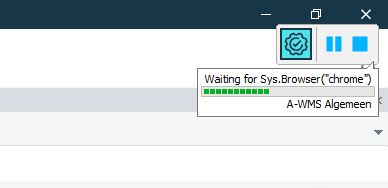
My test won't navigate to the webpage it just says "Waiting for Sys.Browser("chrome")" Anyone else have this problem? Yesterday it worked fine, Today it is broken. Chrome is open on my second screen, and if it wasn't it should open the browser.Solved7.6KViews2likes11Comments
Enabling Default Print Dialog in MS Edge \ Chrome
I am just posting this info for others to be able to be able to use. As I have been automating lately against the MS Edge and Chrome browser, when it comes to handling the print window that the browsers displays, ObjectSpy cannot work with it easily or at all?. I just needed a Print window to deal with easily, so I looked up how to use the System Default Print Dialog like IE presented. I have provided the the Windows Registry settings for both MS Edge and Chrome: Enable Default Print Dialog in MS Edge: ----------- \HKEY_LOCAL_MACHINE\SOFTWARE\Policies\Microsoft\Edge Add UseSystemPrintDialog - REG_DWORD (32-bit) Value with value 1 Enable Default Print Dialog in Chrome: ----------- \HKEY_LOCAL_MACHINE\SOFTWARE\Policies\Google\Chrome. Add DisablePrintPreview - REG_DWORD (32-bit) with value 13.1KViews2likes0Comments