We are building a new experience for our SmartBear Community.
This site is now read-only. You can still browse and search as usual. Learn More
This site is now read-only. You can still browse and search as usual. Learn More


The file "pdfbox-app-1.8.8.jar" was reloaded (in case it was corrupted), and this did not solve the issue.
Issue was eventually solved.
Step 1.
Updated the JRE (Java Runtime Environment) to the latest version.
Step 2.
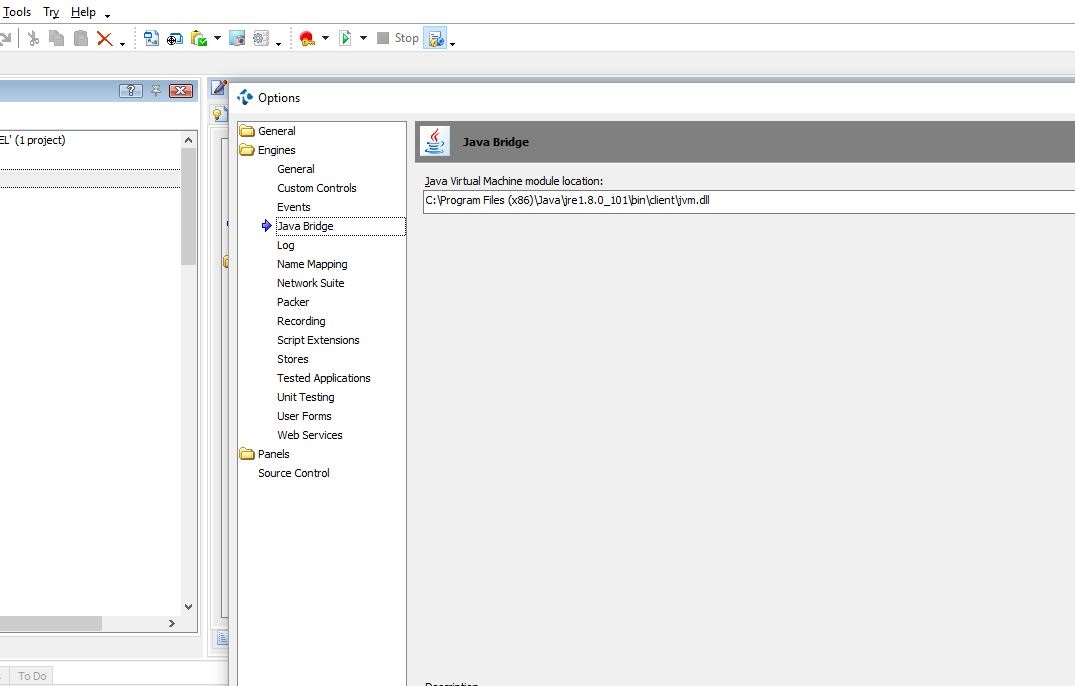
In the Menu Bar, select "Tools", then "Options". Go to "Engines", then "Java Bridge".
Select the latest JVM (java Virtual Machine) path. See picture "TestComplete-JAVA-Bridge-B.JPG".
Step 3.
Under the Project "Properties", "java Bridge", both the "Java Classes" and the "Class Paths" were deleted, then reloaded. See picture "TestComplete-JAVA-Bridge.JPG".
These two steps fixed the issue.
Test Complete does not automatically JVM path after a Java update.

Hi Jose,
> [...] JAVA updates automatically.
First note: There were similar discussions on the forum related to the automatic updates of web browsers and my personal opinion is that with the enabled auto updates you are getting uncontrollable test environment and this is far not always the best approach.
Indeed, if your company explicitly declares that it supports the latest and only the latest version of, say, Java and accepts responsibility for any reported problems that were caused by the just released Java version (even if new Java was released in the midnight in the middle of the weekend and the issue report arrived 5 minutes later after this), then you have no choice but continuously test on the latest Java version available (what about betas?).
Otherwise, even if you try your best to support the latest version as soon as possible, you must keep your test environment stable and controllable. Disable automatic updates. When the new version is released, create a new documented test environment, check if the environment itself works, check if your tested application can at least start on this new environment, check if your tests still work on the new environment, analyze results and only after that you may dispose of your previous test environment if needed.
With the approach above, in the worst case you still will be able to execute your tests for the new builds of your tested application on the previous test environment and provide the results. But in case of uncontrollable test environment you are at risk of been completely blocked (like you are now) and not been able to provide results for both new and previous test environments.
As for your actual question, it looks like that the case is not updated Java, but updated version of PDFBox library that is used in your code.
As the only thing that you need is to extract text from pdf file, I would recommend to rollback pdfbox library from v.2.x to 1.x.
Otherwise, you may check this thread (https://community.smartbear.com/t5/Desktop-Testing/Compare-pdf-files/m-p/122418#M6672) and try to adjust your test code.
The file "pdfbox-app-1.8.8.jar" was reloaded (in case it was corrupted), and this did not solve the issue.
Issue was eventually solved.
Step 1.
Updated the JRE (Java Runtime Environment) to the latest version.
Step 2.
In the Menu Bar, select "Tools", then "Options". Go to "Engines", then "Java Bridge".
Select the latest JVM (java Virtual Machine) path. See picture "TestComplete-JAVA-Bridge-B.JPG".
Step 3.
Under the Project "Properties", "java Bridge", both the "Java Classes" and the "Class Paths" were deleted, then reloaded. See picture "TestComplete-JAVA-Bridge.JPG".
These two steps fixed the issue.
Test Complete does not automatically JVM path after a Java update.

Thanks for the solution. I had exactly the same issue when testing pdf reports - Code that used to work failed with
Object doesn't support this action: 'JavaClasses.org_apache_pdfbox_pdmodel'.
Looks like Java have moved their code again since your post and no longer use the x86 program folder for 64 bit OS:
C:\Program Files (x86)\Java\jre1.8.0_131\bin\client\jvm.dll
is now
C:\Program Files\Java\jre1.8.0_131\bin\server\jvm.dll
Hi,
Java 64-bit installs into C:\Program Files\ while 32-bit - into C:\Program Files (x86)\.
(The possible case is that most of modern overly-smart applications do not consider 32-bit option when running on 64-bit systems. So you may have 64-bit version to be (auto)updated while 32-bit version remained the same.)
So that my script doesn't fail every time Java updates and to remind me of what I have to do to fix it I have added this VBS code to test that the current Java Virtual Machine is referenced before I start working with it.
function isCompatibleJava
'The Java Bridge is set in Tools\Options >> Engines\Java Bridge
'Since each Java update moves this file this reference needs to change to point to the current Java Virtual Machine.
'This parameter cannot be set programmatically so all we can do is test that the current Java is compatible with what we have set.
'Returns TRUE if compatible.
isCompatibleJava = false
on error resume next
set someObj = JavaClasses.org_apache_pdfbox_pdmodel
if err.number = 0 then
isCompatibleJava = TRUE
else
log.Warning("Your Java install is incompatible with this script. In TestComplete open Tools\Options, navigate to Engines\Java Bridge and point it to your current Java virtual machine e.g. C:\Program Files\Java\jre1.8.0_141\bin\server\jvm.dll")
end if
on error goto 0 'turn off error handling
end function