Dynamic Text Fields
I've had recorded a test keyword script. In which some fields have name mapping like Aliases.browser.bufferedframeSymbolsAbc12360.extendedframeNavigator.textfieldSelect. After re-login application changed the name mapping to "Aliases.jp2launcher.bufferedframeSymbolsAbc12360.extendedframeNavigator.MaskedTextItem21" How I can handle it? I'm also unable to use WILD CARD in this specific scenario. Because, when I use it like MaskedTextItem*. Test complete find the another textbox field instead of correct.73Views0likes1Comment
Scalable Salesforce Lightning Experience Automation Using TestComplete: A Field-Tested Strategy
Introduction SaaS platforms like Salesforce CRM are frequently patched and updated, making test automation maintenance an ongoing challenge. This article presents a proven strategy for automating the Salesforce Lightning Experience using TestComplete, one that supports long-term maintainability and scalability in the face of Salesforce’s rapid UI evolution. Article Content All strategies in this article were built using only the TestComplete Web license, without relying on OCR or AI-enhanced capabilities. The approach is designed to be scalable and maintainable using standard features available to most teams. We’ll focus on essential techniques such as manual NameMapping control, caching strategies, parameterized XPath selectors, smart waits, and DOM structure analysis. Automation in a Rapidly Changing Salesforce Environment Salesforce’s UI framework changes frequently. While invisible to end users, these updates often break test automation by altering how elements are recognized. Frequent internal deployments (e.g., biweekly sprints with customization) further compound maintenance. Delayed updates blur the line between real UI changes and false test failures, making root-cause analysis difficult. Staying current is key to preserving automation ROI. KeywordTests scripts vs. Code scripts While TestComplete supports both code-based and KeywordTests-based scripts, each offers distinct advantages. KeywordTests benefits: Faster test creation and rearrangement One-click operation timeout adjustments Direct run of individual operation Enables non-coding team members to contribute Automatic reference update when a NameMapping Alias node name or a script name are renamed Hybrid Strategy: Use KeywordTests for UI flows and code scripts for specialized logic, such as: Date/time calculations Dynamic value generation (e.g., timestamps) Browser control (e.g., incognito mode) Handling Dynamic Salesforce URLs Salesforce URLs include object names, dynamic record Ids, and state indicators, such as: /lightning/r/Account/0011f00000hr5NdAAI/edit /lightning/o/Account/new These cause redundant NameMapping entries for the same logical pages. Solution: Use wildcard to consolidate NameMapping pages: ✅ */lightning.force.com/lightning/* (recommended) ❌ * (too broad) ❌ */lightning.force.com/lightning/o/Account/new* (too narrow) Use one generic page reference. Avoid opening multiple tabs with similar URLs. TestComplete may not distinguish them. Simplifying Field Mappings Salesforce uses consistent UI framework across object. A UI update affecting one field type can impact all instances, requiring extensive remapping. Solution: Use parameterized XPath with persistent variables. Steps: Add persistent variables on the project level: LabelText ItemValue Create NameMapping parent/child Alias nodes with parameterized XPath: PicklistField: //div[@part='combobox' and descendant::text()='%LabelText%'] PicklistButtonDropdown: //div[@part='combobox' and descendant::text()='%LabelText%']/div//*[@role='combobox'] PicklistItem: //div[@part='combobox' and descendant::text()='%LabelText%']//span[@title='%ItemValue%'] In your script: Set the variable values Refresh the NameMapping cache Interact with the field Handling Shadow DOM in Salesforce Salesforce frequently uses Shadow DOM in areas like related lists, dynamically activating different DOM branches. Steps to identify active elements: In browser DevTools Console: $x("your XPath here") Expand the results and hover over each to locate the active one visible on-screen (typically the last). Right-click → Open in Elements panel and from that panel right click → Copy full XPath. Compare paths to identify the active DOM branch root element and refine your XPath to include it: $x("//root XPath//your XPath here") Managing NameMapping at Scale In large Salesforce automation project, NameMapping can become unmanageable without discipline. Best practices: Avoid auto-generated entries (like “record”) Use one targeted XPath per node Maintain a clean and consistent hierarchy Restrict NameMapping edits to a single owner Working with Lazy-Loaded Pages Salesforce renders elements dynamically as the user scrolls. TestComplete cannot interact with elements that aren’t yet present in the DOM. Best practice: Create a reusable function that: Scrolls to the bottom of the page, and wait for page to load Scrolls back to the top of the page, and wait for page to load This ensures the page is fully rendered before interaction. Refreshing NameMapping Cache TestComplete caches object mappings to improve speed, but this can cause issues with generic URLs and parameterized selectors. Fix: After navigation or variable value change, call: Aliases.browser.RefreshMappingInfo() Automate this into a helper function and to avoid inconsistencies, call it on each page load and variable value change. Smart Waiting Strategy Speed matters, but stability matters more. Avoid fixed delays by using a smart, layered waiting strategy. Best practices: Wait for page load and increase operation-level default timeout (e.g., 60 seconds) Check object properties in sequence: .Exists .Enabled .VisibleOnScreen For toggle buttons (e.g., Save): Wait for Enabled = false Then wait for Enabled = true Conclusion & Pro Tip This strategy has sustained an automation project across five years of continuous testing in a live Salesforce environment with frequent agile deployments. It emphasizes: Manual NameMapping control XPath expertise Shadow DOM navigation While it limits the use of TestComplete’s out-of-the-box features (e.g., self-healing, auto-mapping), it creates a scalable, stable, and maintainable automation framework for a dynamic platform like Salesforce. Pro Tip: Maintain a separate TestComplete project for exploratory test recordings and quick trials. Only manually integrate stable, reviewed logic into the main framework. Summary While this approach may slow initial script creation, it significantly reduces long-term maintenance. By moving beyond default behaviors and embracing a structured methodology, you build a resilient automation suite that thrives in the face of constant Salesforce changes. For teams automating complex SaaS platforms, this strategy delivers the stability, visibility, and adaptability required for lasting success.From Confused to Confident: Master XPath for Web Testing
Introduction Learn how to confidently build, refine, and troubleshoot XPath expressions. This practical, example-driven guide covers TestComplete HTML and CSS basics, XPath syntax, and browser validation techniques, helping you create stable and maintainable automated web tests. While TestComplete can generate XPath or CSS selectors automatically, generated selectors can break if page layouts change, so knowing how to tweak XPath manually ensures your tests remain reliable even on pages that change frequently. HTML Basics W3Schools Reference HTML stands for HyperText Markup Language. It is the standard markup language for creating web pages. An HTML document can be represented as a Document Object Model (DOM), which is a tree of nested elements. Each element may have attribute name–value pairs that provide additional information about that element like its ID or class. An HTML element typically includes a start tag, content, and an end tag, for example: <tagname>Content goes here...</tagname> Save this simple example as a file named "index1.html" and open it in a browser, or paste it in W3Schools Tryit Editor left pane section. The <img> tag’s src may point to any valid image file or a valid URL. <!DOCTYPE html> <html> <head> <title>Page Title</title> </head> <body> <h1>This is a Heading</h1> <p>This is a paragraph.</p> <a href="https://www.w3schools.com">This is a link</a> <p>This is another paragraph.</p> <img src="w3schools.jpg" alt="W3Schools logo" width="104" height="142"> </body> </html> CSS Basics W3Schools Reference CSS stands for Cascading Style Sheets and defines how HTML elements are displayed color, size, spacing, and layout. CSS rules consist of a selector and a declaration block, which contains property–value pairs, for example: h1 { color: blue; font-size: 24px; } Save this simple example as a file named "index2.html" and open it in a browser, or paste it in W3Schools Tryit Editor left pane section. <!DOCTYPE html> <html> <head> <style> body { background-color: yellow; } p { color: red; margin-left: 100px; } </style> <title>Page Title</title> </head> <body> <h1>This is a Heading</h1> <p>This is a paragraph.</p> <a href="https://www.w3schools.com">This is a link</a> <p>This is another paragraph.</p> <img src="w3schools.jpg" alt="W3Schools logo" width="104" height="142"> </body> </html> CSS selectors are different from XPath selectors, and TestComplete can use both depending on the browser engine. XPath Basics W3Schools Reference XPath stands for XML Path Language. It uses a path-like syntax to identify and navigate nodes in an XML or HTML document. Now that we’ve reviewed how web pages are structured, let’s see how XPath helps locate elements within them. In web testing, XPath is commonly used to locate elements within the HTML DOM. Important points to keep in mind: HTML <tags> and element names aren’t case-sensitive are normalized to lowercase, but attribute values are and usually enclosed in quotes. XPath works the same in HTML as in XML and navigates elements using relationships: Ancestors, Descendants, Parent, Children, and Siblings. Absolute Path: Starts from the root with a single slash "/", for example: "/bookstore". Absolute XPath is brittle because page layouts often change. Relative Path: Starts with double slashes "//" and searches anywhere in the document, for example: "//book". Consider this XPath Expression: "//div/a[contains(@class, 'button')]/@href". Let’s break it down step by step: 1. // = Search all descendants in the document 2. div = Select any "<div>" element 3. / = Navigate to direct child 4. a = Select the "<a>" child element 5. [] = Apply a condition 6. contains(@class, 'button') = Select "<a>" elements whose "class" attribute value contains "button". The contains() is very useful for partial matches. 7. / = Navigate to the next level 8. @href = Returns the value of the "href" attribute. In Plain English: Find all "<a>" links inside "<div>" elements with "button" in the class attribute and return their "href" values. Understanding XPath expressions helps handle dynamic pages, where IDs, classes, or structures may change across builds or browsers. You could also use wildcards and parameters. Testing XPath in Chrome & SmartBear Sample Shop Browser Developer Tools (DevTools) among other things are used to debug the HTML DOM and examine individual elements. Press "F12" to open DevTools. When DevTools is docked to the right (the default), the page layout may adjust dynamically. To maintain the original layout, and for this exercise switch the DevTools dock position to the bottom. SmartStore’s dynamic structure may vary and actual results may differ if the site layout changes. The Console panel in DevTools lets you execute XPath expressions directly in the browser to validate their syntax and confirm that they correctly identify elements within the DOM. The $x("...") is Chrome-specific console command function and is also not part of TestComplete. Type your XPath inside the command. Step-by-step example On the SmartStore Page click on the header "Help & Services", then right-click on the menu item "About Us" and select "Inspect". The Elements panel in DevTools will expand and highlight the corresponding HTML DOM element. Perform the following steps in the Console Panel: Type $x("") and notice the console displays "undefined". Type $x("//a") and notice the console displays "(109)" meaning there are 109 matching <a> elements, stored in an array. Type the full XPath $x("//a[span[text()='About Us']]") and notice the status changes to (2) signaling two matches were found. Note: If your target text is not inside a <span>, adjust to $x("//a[text()='About Us']"). Press Enter to execute the XPath expression and then expand the results to hover your mouse over the first entry "0: a.dropdown-item.menu-link", the element in the SmartStore page gets highlighted. Similarly, in the Elements panel, hovering over the element highlights it in the SmartStore page. Right-click on "0: a.dropdown-item.menu-link" and select "Open in Elements panel". This navigates directly to the HTML DOM element in the Elements panel. Scroll the SmartStore page to the bottom, and in the Elements panel, right-click on the element and select "Scroll into view". The SmartStore page will scroll back up and the element on the page will be highlighted. Right-click on the element and select "Copy" > "Copy XPath", "Copy full XPath", "Copy selector", or "Copy Element". You can paste into any editor for review. The "Copy XPath" generates an absolute path, while the "Copy full XPath" is fully qualified from root, both can break if the DOM structure changes. Repeat the steps for the second match "1: a.menu-link" to reinforce your understanding. Refining XPath for precision Option 1: By adding attribute filters with name–value pairs: view the element details and update the XPath $x("//a[span[text()='About Us'] and @class='dropdown-item menu-link']") Option 2: A more robust and preferable approach is to reference an ancestor in the XPath. Copy both elements' full XPath and paste them in a text editor for visual comparison. /html/body/div/div[2]/header/div[1]/div/nav/nav[2]/div/div/div/a[5] /html/body/div/div[2]/footer/div[2]/div/div/div[3]/nav/div/div/ul/li[1]/a The full XPath is a brittle locator that breaks with layout changes. Find the top ancestor and refine the XPath, start from a logical ancestor like “//header//a…” or “//footer//a…” and continue with descendant selectors, not direct children. The double slashes (//) mean any descendant level, not necessarily a direct child. Don’t worry if your XPath doesn’t work the first time—this is normal! $x("//header//a[span[text()='About Us']]") $x("//footer//a[span[text()='About Us']]") When you copy the full XPath from the browser and try to run it, it may not work. Example of a common mistake that will result in such error: "Uncaught SyntaxError: missing ) after argument list". Why: The double quotes (") inside the XPath conflict with the double quotes wrapping the string in JavaScript or TestComplete scripts. Use single quotes (') inside your XPath string to prevent conflicts with the outer double quotes used in the scripting environment. Incorrect: $x("//*[@id="header"]/div[1]/div/nav/nav[2]/div/div/div/a[5]/span") Correct: $x("//*[@id='header']/div[1]/div/nav/nav[2]/div/div/div/a[5]/span") Common Mistakes & Troubleshooting If your XPath expression doesn’t yield expected results, refresh the page or ensure you’re on the correct frame, and check for dynamic rendering (elements loaded after page load). Also try waiting for the element or using relative paths. Check whether the element is inside an iframe — in that case, switch context before applying XPath. Conclusion XPath can initially seem confusing, but with patience and practice, you’ll confidently tackle a wide range of web element identification challenges. Mastering XPath will also help you debug TestComplete object recognition issues more effectively. TestComplete’s flexibility, combined with a solid understanding of XPath, allows you to create robust, maintainable, and reliable automated tests. XPath skills also translate to CSS selectors and other object identification methods, improving cross-technology automation. Start experimenting with simple examples today, you’ll be surprised how quickly manually manipulating XPath becomes your favorite action!
NameError: name 'Aliases' is not defined
After the latest update I am running into a "NameError: name 'Aliases' is not defined" error when attempting to run any test. Name mapping hasn't changed, the file is still in the same location in the project and the "highlight" function still correctly recognizes the application. Is there an easy way to find links to older versions? Downgrading seems to be a common thing with TestComplete.Solved577Views0likes5CommentsAccess Alias Path Information from Stub Objects in TestComplete
Context When a TestComplete alias object isn’t yet present in the UI, TestComplete returns a stub object. These stub objects currently expose only .Exists. Unfortunately, this makes it hard to dynamically determine the full alias path (.MappedName or .FullName) until the object exists. The information does exist somewhere as the stub object is defined in code by calling the Alias. Problem QA Engineers writing reusable functions often need to accept an alias object as a parameter, discover its parent/child path, and call WaitAliasChild step-by-step. This creates a circle. To call WaitAliasChild, you need the parent alias name and the child name. To discover those, you need .MappedName or .FullName. But those properties aren’t available until the object exists—exactly when you no longer need to wait. Which forces brittle workarounds like: Passing hard-coded alias strings (error-prone, breaks IntelliSense and alias tree binding). Parsing alias paths out of exception messages (fragile). Re-architecting tests to rely solely on string paths, which loses the benefits of the Aliases library and auto-completion. Requested Enhancement Provide a supported way to obtain the full alias path of a stub object before it exists. For example: // Current stub: { Exists: false } // Suggested: { Exists: false, MappedName: "Aliases.Application.SearchField", FullName: "Sys.ApplicationName.MainWindow.SearchField" } or a dedicated API: aliasObj.GetAliasPath(); // returns "Aliases.Application.SearchField" aliasObj.GetFullName(); // returns "Sys.ApplicationName.MainWindow.SearchField" Benefits Enables dynamic, reusable functions that accept alias objects as parameters. Eliminates the need for fragile string-based or error-parsing hacks. Keeps code strongly tied to the Aliases tree for maintainability and IntelliSense. Example Use Case function test(aliasObj) { var parentPath = aliasObj.GetAliasPathParent(); var childName = aliasObj.GetAliasChildName(); var child = parentPath.WaitAliasChild(childName, 10000); } test(Aliases.Application.Screen1.SearchField); test(Aliases.Application.Screen2.SubScreenA.SearchField); Reasoning for this solution The stub object is defines by calling the Alias, therefore it is somewhere available in the code. An example of how this works can be seen in the aqObject.CheckProperty native TestComplet function. In the Test Log the Alias is actually listed in the details tab of the error, even is the object does not exist. This proves that the Alias is accessible even though the object cannot be assessed. See stubAlias.png attached. Summary Expose alias metadata (MappedName/FullName) on stub objects or provide a safe method to query it.33Views0likes0Comments
Name Mapping not Working in Latest Version
I am encountering a problem with name mapping in TestComplete where my script cannot find my mapped object. The mapped object is definitely visible, and if i go into the name mapping section of TestComplete and press "Highlight" test complete can see that it is on the screen and highlights it. It specifically cannot see the mapped object when the script is being run. This name mapping worked in an older version(15.61), however in the newest version of test complete(15.76). I am not sure exactly between which versions it stops working. When I initially ran into this issue, most people suggested just rolling back to the previous version, and 15.61 was the only installer i had that i knew would work. I am trying to solve this without rolling back versions because i would like to use python 3.11. Thank you, any help is appreciated.763Views1like23CommentsDownload an Earlier Version of TestComplete
Hello, So i am looking to download a couple of specific versions of TestComplete, specifcally 15.71 and 15.72 for the purpose of looking into an issue I am encountering. However I cannot seem to be able to find a place where i can get the installers for these, or any other previous versions. I was wondering if anyone had any idea if there was a library of previous installers that I could refer to for my testing. This is in relation to another post of mine where Name Mapping stopped working within my TestComplete environment. After doing some backtracking and research, i believe it was between these two versions that it broke. I was looking to provide support with this information, though based on my searching through the forums other people have also created tickets for this and it was not ever resolved. But nonetheless i would like to make sure I'm doing my due diligence before just saying TestComplete broke its self.Solved498Views1like2Comments
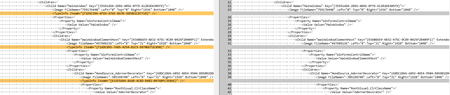
Name mapping gone
Hi, we are a small team and finding ourselves in this issue where whenever we make changes to the name mapping, and stage them to be committed, we notice that the <typeinfo> entries in the namemapping.tcnm xml file suddenly disappear. I think this is due to us initially not committing the typeinfo.dat file. We know have no way to restore that file. Could someone please help us understand if there is a way around this? I'm hoping there is something we can do so that it can trigger the typeinfo.dat file to be populated again/or download it. ^ the above is what it looks like, but every single name mapped entry has lost its typeinfo tag. Thank you for taking the time, NameMapping is new to us.220Views0likes4Comments
POWERBUILDER & TESTCOMPLETE
Just wondering is there a workaround with the MSAA (pbdw*) to accommodate Powerbuilder 2019 & 2022. We migrated to 2019 and I remapped all of the datawindows in TestComplete so it would be recognized during runtime. Again, we migrated to 2022 and I'm to the same issue. I know about the supported version... Supported PowerBuilder Versions With TestComplete, you can create and run tests for applications created with PowerBuilder Classic version 12.0, 12.5, 12.5.2 and 12.6. I saw other posts with similar questions regarding the same issue. Support ticket created Thanks 🙃Solved713Views1like3Comments