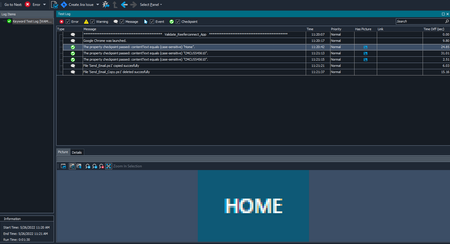
ContributionsMost RecentMost LikesSolutionsRe: Test Complete is not capturing events (On screen Actions) in Test Results (Test Log) Hi npaisley, I already run the "Repair TestComplete" process but unfortunately the issue still persists, I will try to reinstall TestComplete to see if this fix the issue Re: Test Complete is not capturing events (On screen Actions) in Test Results (Test Log) Hi npaisley, No I haven't used the 'Log.LockEvents' method, also I have only one event handler "OnLogError" to failed the scripts (in case they failed) in a different automation tool using API's, but nothing related with the Logs or events, any other idea on this? I am also thinking on reinstalling TestComplete to see if this fix the issue. Re: Test Complete is not capturing events (On screen Actions) in Test Results (Test Log) Hi npaisley, I just restored the docking layout using the "Restore Default Docking" option, but nothing changed, please find below the screenshot of the entire Test Log screen, the issue is not the picture or screenshot, the problem is that all the steps that are usually displayed as "Events" are not displayed in the Log, in the screenshot you can see that the log is not filtered so these steps should be displayed but they aren't: I already reviewed the configuration in the "Tools -> Current Project Properties -> Visualizer" menu and it has the same configuration than yours: Another example of this situation with a different script: Scripts results before the issue (all the event steps are displayed): Scripts results after to the issue (all the event steps are NOT displayed and only the checkpoint are shown in the log): Test Complete is not capturing events (On screen Actions) in Test Results (Test Log) Last week I realized that Test Complete is not capturing the events (On screen Actions) when running my scripts, previously this was working fine but after upgrading TestComplete to version 15.20.341.7 and applying a major update to my project this is not working anymore, I can only see in the Test Log the Checkpoints and messages that I added for each script (screenshot attached) Probably I updated something in the configuration after the update of my project but haven't found a solution for the same, I even compared the configurations for my old and new projects but cannot find something different, could you please let me know if you have a solution for this? Re: How can I add and update a note for an existing Agile Task using QAC API's? I already tried with the proposed solution and it worked. Thank you for you help!!!! For those that want to add/update notes for Agile Tasks you can use the POST and PUT Method but using the EntityCode as ProjectTasks, for example this will be an example for GET and POST Methods: GET https://rest.qacomplete.smartbear.com/rest-api/service/api/v1/projects/<projectID>/ProjectTasks/<agileTaskID>/notes POST https://rest.qacomplete.smartbear.com/rest-api/service/api/v1/projects/<projectID>/ProjectTasks/<agileTaskID>/notes Request's Body { "Description": "Note 1" } How can I add and update a note for an existing Agile Task using QAC API's? Hello, Is there a way to add and update a note for an existing Agile Task using QAC API's? I already tried with the API request that is in the documentation site (https://support.smartbear.com/qacomplete/docs/developer/api/rest/api/reference/agile-tasks/id-patch.html) but it is not working, in fact I can update other fields as "pct_complete" but when I tried to update an existing note by changing value for the "notes_description" field, it is not working; I am getting a 200 OK in the response of the PATCH method and I am also able to see the latest information of the Agile Task but the note isn't updated. I also tried to add a new note by updating the "nbr_notes" field to the next consecutive number but it's the same case with the "notes_description" field, I just get the 200 OK response but nothing changes SolvedRe: Execute scripts by command line is not working for TestExecute 15 Hello, it is the environment variable that is called "PATH" you can find it following these steps: 1) Open Windows browser and type "Edit environment variables for your account" and select this option 2) In the "Environment variables" screen there should be a variable with the name "Path" 3) Select this variable and click on "Edit" button, the "Edit environment variable" screen should be opened 4) Click on "New" button and then enter the path of the folder where you have the .exe for TestExecute, for me it was the following "C:\Program Files (x86)\SmartBear\TestExecute 15\Bin" 5) Click on "OK" and then "OK" button to apply the changes 6) I don't remember if I needed to restart the machine to see the changes reflected, but in case you don't see them immediately you may need to restart it Note: If you are working in a company, you may not have the proper permissions to update the environment variables, if that is the case you will need to contact your IT support team to do it, hope this helps Re: Execute scripts by command line is not working for TestExecute 15 After adding the path of "Test Execute 15" to the PATH environment variable I was able to execute the scripts using the bat file, thank you for all your help Note: For the people that has the same issue, I added the following path "C:\Program Files (x86)\SmartBear\TestExecute 15\Bin" into the PATH environment variable Re: Execute scripts by command line is not working for TestExecute 15 Ok, unfortunately I don't have permissions to do it, let me ask the support team to add it to the PATH environment variable and see if this fix the issue, thank you for your response, I will get back with the results Re: Execute scripts by command line is not working for TestExecute 15 Sure, please find attached the bat file