Unable to click second item/object in File Explorer
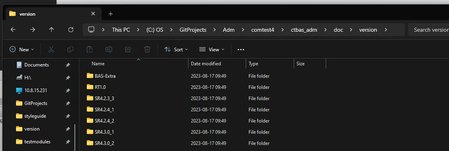


Found a workaround that works for now, had to do "End" keyboard input, down arrow and enter.

 Champion Level 3
The inconsistency happens because File Explorer sometimes isn’t focused when the keys are sent. You can fix this directly in your Keyword Test with a simple, stable sequence:
This gives Explorer a reliable starting point and ensures the second folder is opened consistently.
🤖 AI-assisted response
👍 Found it helpful? Click Like
✅ Issue resolved? Click Mark as Solution
Champion Level 3Another idea:
If the folder name changes but it’s always the second item, you can avoid keyboard timing issues by clicking it directly through the File Explorer object. For example:
let explorer = Sys.Process("explorer");
let list = explorer.Window("CabinetWClass").Window("DirectUIHWND");
list.Child(1).DblClick(); // Opens the 2nd folder
This skips the need for focus or delays and stays stable even if folder names change.
You can also wrap it in a small routine and call it from your keyword test.
🤖 AI-assisted response
👍 Found it helpful? Click Like
✅ Issue resolved? Click Mark as Solution
 Champion Level 3
A better approach is to enable MSAA (Project Settings -> Open Applications -> MSAA), this will expose all controls of Explorer. You can then search for the appropriate item, in this example, List("Items View") such as List("Items View").ListItem("Extensions") and perform e.g. a double click, to go into the folder of Extensions.
Contents of folder C:\Program Files (x86)\SmartBear\TestComplete 15\x64\BinThe above picture shows all controls of Explorer, exposed to TC, which you can interact with. You don't have to take into account the ordering of items, you just call the appropriate method to perform the action you require.