TestComplete has incorrect screen coordinates for objects on second monitor
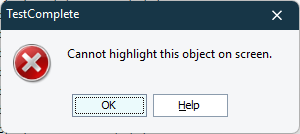


Where is the Relative Coordinates Option?

 Champion Level 3
There isn’t a global “Relative Coordinates” option in TestComplete. The tool doesn’t have a single setting that switches everything from screen-relative to window-relative. In normal UI automation you don’t usually specify coordinates at all—TestComplete clicks in the center of the object after calculating its position. So the coordinates you listed are likely diagnostic values, not something you’re intended to use directly.
The actual issue is that your primary and secondary monitors use different DPI scaling levels. TestComplete is not fully per-monitor DPI-aware, so when the AUT moves to a monitor with different scaling, the screen coordinates it computes for objects can become incorrect. SmartBear explicitly documents this limitation here: Testing With Various DPI Settings
Regarding “relative coordinates”: the only area where TestComplete exposes this is in low-level procedures, where you can choose to record events using window-relative rather than screen-relative coordinates. These features are documented here: Window- and Screen-Relative Low-Level Procedures and Creating and Recording Low-Level Procedures
This is not a global option, and it only applies if you explicitly use low-level event recording — most automated tests never need it.
To improve stability in mixed-DPI environments:
🤖 AI-assisted response
👍 Found it helpful? Click Like
✅ Issue resolved? Click Mark as Solution