Forum Discussion
Hassan_Ballan
Champion Level 3
18 days agoTechnical Checklist for Cross-Monitor Object Coordinates in TestComplete:
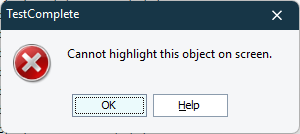
When TestComplete reports incorrect screen coordinates on a secondary monitor, it’s usually related to DPI scaling or monitor layout. To address this, consider:
- DPI / Display Scaling: Ensure both monitors use the same scaling (e.g., 100%). Mixed DPI often causes coordinate misalignment.
- Monitor Arrangement: Check Windows’ display setup. Unusual arrangements (secondary monitor left/above primary) can offset virtual desktop coordinates.
- TestComplete Startup Timing: Start TestComplete after monitors are configured, so it captures correct virtual desktop coordinates.
- Privilege Level: Ensure TestComplete runs with the same permissions as the application under test.
- Relative Coordinates Option: For multi-monitor setups, using coordinates relative to the parent window can avoid absolute screen-coordinate errors.
Following this checklist usually resolves issues where objects are detected correctly on the primary monitor but misaligned or unrecognized on secondary monitors.
🤖 AI-assisted response
👍 Found it helpful? Click Like
✅ Issue resolved? Click Mark as Solution