Web PopUps
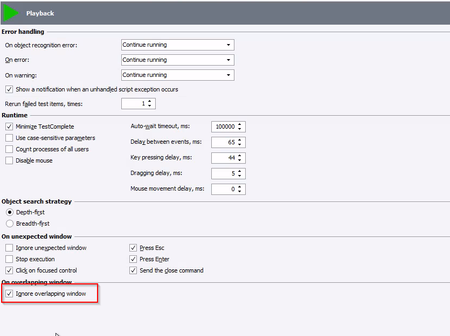
Hi, we have problems for last few days with TC not ignoring overlapping windows, like download files on chrome. We have TC 15.80 version, we tried with newer version 15.85 and problem is still there. when recording or adding On-Screen Action we also get highlighted whole page insted of desired field. We hadn't have a problem with this since we started web testing with TC (about 5 years now). tion On screen action highlight whole page even thoe it shoul highlight only button where 999 is.50Views0likes2Comments
OCR is not detecting zero numbers
Hi, from several days OCR is not correctly detecting zero numbers, and it is replacing zero with O letter. Eg: it is detecting O3:O5:OO AM instead of 03:05:00 AM that is the value within the web page. It is happening also using OCR from the Record Script functionality, and not only by using the Recognize method. Is anyone else facing this issue?184Views2likes8Comments
Anyone use Google's "Chrome for Testing" with TestComplete?
We didn't really know this was a thing but google offers any version of chrome specifically meant for testing https://developer.chrome.com/blog/chrome-for-testing The problem I've run into getting it to work with TestComplete is how to correctly make my tests use this version as the default chrome so that testcomplete opens "Chrome for Testing" and not the regular chrome. Anyone have this set up or can offer tips?117Views0likes1Comment
Scalable Salesforce Lightning Experience Automation Using TestComplete: A Field-Tested Strategy
Introduction SaaS platforms like Salesforce CRM are frequently patched and updated, making test automation maintenance an ongoing challenge. This article presents a proven strategy for automating the Salesforce Lightning Experience using TestComplete, one that supports long-term maintainability and scalability in the face of Salesforce’s rapid UI evolution. Article Content All strategies in this article were built using only the TestComplete Web license, without relying on OCR or AI-enhanced capabilities. The approach is designed to be scalable and maintainable using standard features available to most teams. We’ll focus on essential techniques such as manual NameMapping control, caching strategies, parameterized XPath selectors, smart waits, and DOM structure analysis. Automation in a Rapidly Changing Salesforce Environment Salesforce’s UI framework changes frequently. While invisible to end users, these updates often break test automation by altering how elements are recognized. Frequent internal deployments (e.g., biweekly sprints with customization) further compound maintenance. Delayed updates blur the line between real UI changes and false test failures, making root-cause analysis difficult. Staying current is key to preserving automation ROI. KeywordTests scripts vs. Code scripts While TestComplete supports both code-based and KeywordTests-based scripts, each offers distinct advantages. KeywordTests benefits: Faster test creation and rearrangement One-click operation timeout adjustments Direct run of individual operation Enables non-coding team members to contribute Automatic reference update when a NameMapping Alias node name or a script name are renamed Hybrid Strategy: Use KeywordTests for UI flows and code scripts for specialized logic, such as: Date/time calculations Dynamic value generation (e.g., timestamps) Browser control (e.g., incognito mode) Handling Dynamic Salesforce URLs Salesforce URLs include object names, dynamic record Ids, and state indicators, such as: /lightning/r/Account/0011f00000hr5NdAAI/edit /lightning/o/Account/new These cause redundant NameMapping entries for the same logical pages. Solution: Use wildcard to consolidate NameMapping pages: ✅ */lightning.force.com/lightning/* (recommended) ❌ * (too broad) ❌ */lightning.force.com/lightning/o/Account/new* (too narrow) Use one generic page reference. Avoid opening multiple tabs with similar URLs. TestComplete may not distinguish them. Simplifying Field Mappings Salesforce uses consistent UI framework across object. A UI update affecting one field type can impact all instances, requiring extensive remapping. Solution: Use parameterized XPath with persistent variables. Steps: Add persistent variables on the project level: LabelText ItemValue Create NameMapping parent/child Alias nodes with parameterized XPath: PicklistField: //div[@part='combobox' and descendant::text()='%LabelText%'] PicklistButtonDropdown: //div[@part='combobox' and descendant::text()='%LabelText%']/div//*[@role='combobox'] PicklistItem: //div[@part='combobox' and descendant::text()='%LabelText%']//span[@title='%ItemValue%'] In your script: Set the variable values Refresh the NameMapping cache Interact with the field Handling Shadow DOM in Salesforce Salesforce frequently uses Shadow DOM in areas like related lists, dynamically activating different DOM branches. Steps to identify active elements: In browser DevTools Console: $x("your XPath here") Expand the results and hover over each to locate the active one visible on-screen (typically the last). Right-click → Open in Elements panel and from that panel right click → Copy full XPath. Compare paths to identify the active DOM branch root element and refine your XPath to include it: $x("//root XPath//your XPath here") Managing NameMapping at Scale In large Salesforce automation project, NameMapping can become unmanageable without discipline. Best practices: Avoid auto-generated entries (like “record”) Use one targeted XPath per node Maintain a clean and consistent hierarchy Restrict NameMapping edits to a single owner Working with Lazy-Loaded Pages Salesforce renders elements dynamically as the user scrolls. TestComplete cannot interact with elements that aren’t yet present in the DOM. Best practice: Create a reusable function that: Scrolls to the bottom of the page, and wait for page to load Scrolls back to the top of the page, and wait for page to load This ensures the page is fully rendered before interaction. Refreshing NameMapping Cache TestComplete caches object mappings to improve speed, but this can cause issues with generic URLs and parameterized selectors. Fix: After navigation or variable value change, call: Aliases.browser.RefreshMappingInfo() Automate this into a helper function and to avoid inconsistencies, call it on each page load and variable value change. Smart Waiting Strategy Speed matters, but stability matters more. Avoid fixed delays by using a smart, layered waiting strategy. Best practices: Wait for page load and increase operation-level default timeout (e.g., 60 seconds) Check object properties in sequence: .Exists .Enabled .VisibleOnScreen For toggle buttons (e.g., Save): Wait for Enabled = false Then wait for Enabled = true Conclusion & Pro Tip This strategy has sustained an automation project across five years of continuous testing in a live Salesforce environment with frequent agile deployments. It emphasizes: Manual NameMapping control XPath expertise Shadow DOM navigation While it limits the use of TestComplete’s out-of-the-box features (e.g., self-healing, auto-mapping), it creates a scalable, stable, and maintainable automation framework for a dynamic platform like Salesforce. Pro Tip: Maintain a separate TestComplete project for exploratory test recordings and quick trials. Only manually integrate stable, reviewed logic into the main framework. Summary While this approach may slow initial script creation, it significantly reduces long-term maintenance. By moving beyond default behaviors and embracing a structured methodology, you build a resilient automation suite that thrives in the face of constant Salesforce changes. For teams automating complex SaaS platforms, this strategy delivers the stability, visibility, and adaptability required for lasting success.
Web ID, crashing TC
Hi, We noticed that TC is having problems with recognising IDs on WEB (Chrome), we are currently on 15.81 version. When testing some IDs, TC recognises and writes them, and others don’t, without any obvious reason. We establish that if ID has more than 3 numbers in sequence, it will not recognize that ID. Separating words/numbers with - and _ is not always working, or maybe it works only with one of them. Then we noticed that if a large number of numbers not in sequence are in one part of the ID, again it won't work. Also, with caps letters sometimes work, sometimes don’t work. We are only looking for IDs in Web because we found that it is the only part that we can guarantee will always work in tests. We clear the name mapping (selectors) of other stuff. Also, we needed to limit ID to 50 characters; if ID has more than 50 TC won't recognise them. Here are some examples of weird working: report-category-TPotNalIzpisKriterijPotN_219_50aec - not working report-category-tpotnalizpiskriterijpotn_219_50aec - not working report-category-tpotnalizpiskriterijpotn_219_50ae - working ( ‘c’ at the end is removed) eport-category-tpotnalizpiskriterijpotn_219_50aec - not working ( ‘r’ at beginning is removed) report-category-tpotnalizpiskriterijpotn-219-50aec - working ( change from _ to -) report-category-xyxyxyxyxyxyxyxyxyxyxyxy_219_50aec - working (same length of ID) ------------------------------------------------------ travel-order-position-costs-toggle-2670000000001-1 - not working (too many numbers) travel-order-position-costs-toggle-267xyxyxyxyxy-1 - working ------------------------------------------------------ document-list-filters-filter_19745ddd - not working (again, too many numbers) document-list-filters-filter_197_5ddd - working (change ‘4’ to ‘_’) ------------------------------------------------------ document-list-filters-filter_0e73246f - not working ( too many numbers) document-list-filters-filter_0e732y6f working ( change from ‘4’ to ‘y’) and a lot more examples of this pain process. It's impossible to give developers clear instructions on how to make IDs on the web that will work with TC. Can this please be fixed? I was more than a month on these IDs. Older versions sometimes didn't even work when I put manually simple ID like “john” or “john_1”. And at the latest version of TC, we saw that it is crashing a lot more without any messages or reason. Or for example, when you stop the test when it is running, it will frezze and you need to kill the TC in the task manager.153Views0likes5CommentsVerify HTTP Security Header, Response Header and Cookies.
I want to check Cookie Security, HTTP Security Header, HTTP Response Header Flags like HttpOnly, Secure, SameSite, Server Version, X-AspNet-Version, Content-Security-Policy, Strict-Transport-Security, X-Frame-Options, X-Content-Type-Options, Referrer-Policy, Permission Policy, and Cross-Site Scripting Protection using TestComplete. So, requesting a feature to add same in simple way as suggested by SmarBear support team.
Converting VB Script Tests
We’ve been provided with a set of VBScript-based TestComplete test cases that contain embedded test data, and we’re looking to integrate them into our existing hybrid keyword/data-driven JavaScript framework. Has anyone had success automating this type of conversion or leveraging tools to streamline the process? Any recommendations or approaches would be greatly appreciated.59Views0likes1Comment
Elements detected but is beyond the screen.
Using Chrome Version 145.0.7632.117. We want to test with the latest version. Using TestComplete Version: 15.76.5.7 x64 TLDR; version browser.BrowserWindow.Maximize(); Maximize() makes my test fail because it thinks an object is off screen. Logging the browser position I see negative left and top results. The object is also outside the browser window. Anyone else has this? Long version I only have this issue when I maximize the browser window. Logging: Browser window position and size L,T,W,H = -8,-8,1910,911 Then my search box was not clickable, although I could see it on my screen. Logging error: There was an attempt to perform an action at a point, which is beyond the screen. Logging the position and size of the search box reveled that it indeed was going of screen Logging: Search box position and size L,T,W,H = 2600,336,186,31 Seems related to Elements detected, clicked in wrong location with Chrome | SmartBear Community but was requested to create new post. My temp solution: setting a fixed browser window within the bounds of the window. var browserWnd = Sys.Browser("chrome").BrowserWindow(0); browserWnd.Restore(); browserWnd.Position(Left, Top, Width, Height);525Views0likes6CommentsLocating browser mapped objects currently off screen?
Hello, What is the best way to get a mapped object on screen if they are either further down or up a webpage? I'm using Keyword tests to test multiple webpages for the same information but the layouts are different. Thank you137Views0likes5Comments
Accessibility Testing Made Easy: How TestComplete Ensures Web Compliance
Most test automation focuses on functionality but in regulated industries like healthcare, finance, and education, teams must also prove accessibility and compliance. TestComplete’s Web Audit Checkpoints make this simple by integrating accessibility scans directly into automated tests, identifying errors like missing alt text, deprecated tags, and invalid HTML. Teams can set practical thresholds (e.g., zero critical errors, limited warnings) to balance enforcement and flexibility. This ensures every regression run checks not only if features work, but if they meet legal and usability standards. The result is faster compliance, reduced risk, and higher-quality user experiences for everyone. Check out our demo video to see how accessibility testing in TestComplete fits seamlessly into your automation pipeline and helps you build more inclusive, compliant web applications.109Views2likes0Comments