Testcomplete Object interaction drift
Hi all, Testcomplete v15.80.1.7 Previous Chrome- 151.0.7922.76 Current Chrome- 151.0.7922.138 I have a suite of testcomplete tests that run 24/7 across 6 runners via a pipeline. They've been operating just fine, but at some point last night, this changed. The majority of my tests began failing. Inspecting the run logs - what appears to be happening is that object interaction like click (and manuallly, highlight) are regularly clicking a position NOT on the mapped object, but offset up and to the right. This is resulting in missed button clicks, attempts to click points beyond the screen bounds. I include the chrome version as it is the only change I know to have been applied last night, but the version upgrade was minor. Is there any precedent of this? This is not any single object, the effect seems sudden widespread across some ~1300 keywords, with Angular based pages showing the largest impact. Has anybody encountered and resolved this issue? It has quickly shut down our testing capabilities.Solved106Views1like5Comments
TC cannot detect the object in canvas apps?
We have an app designed by Canvas App, and published in Power Apps now. We tried to use testComplete to implement automation testing, but related object cannot detect by Object spy, and it's reported message that "https://support.smartbear.com/testcomplete/docs/app-testing/web/common-tasks/frames.html". I also input below code before script running, and it still cannot idetect the object. Browsers.Item("edge").RunOptions = "--disable-web-security --user-data-dir=\"C:\\Users\\Tester\\AppData\\Local\\Microsoft\\Edge\\User Data\\Default\" --disable-site-isolation-trials" Tips: My testComplete version is 15.82.62.7 x6458Views0likes2Comments
TC not recognizing PrimeNg ContextMenu options
Yesterday, I updated to TestComplete 15.81.7.7 and now my tests are no longer able to select the context menu options. I am able to select a table row and I can right click on that row and the context menu options come up OK. I have code to look for them and TestComplete can find them OK, but the click() doesn't seem to do anything. I tried recording tests, and those work, but TestComplete always names them very specific to what is on the screen at the time and in a very odd way e.g. //td[.="value from cell in table"] which doesn't work with other data. In my code, a specific ContextMenu item named Fred will have the xpath: //p-contextmenu//li[@aria-label="Fred"]//span[@class="p-contextmenu-item-label"][.="Fred"] I can find it using the Chrome Dev Tools and I have code in TestComplete to verify its existence before I do a click and it exists, but the click doesn't seem to have any effect. Any help would be appreciated because this is a very hot task I am working on and will go a long way towards management approving more resources to TestComplete if I can get this done in a short time.210Views0likes7CommentsTestComplete not recognizing WPF objects in interopped WPF window
I have an application that I am testing that uses both Delphi VCL and WPF, connected together via a Windows Forms interop layer. The WPF portion is using .NET 10. Initially, TestComplete was not able to see anything inside the Windows Forms wrapper at all, and was only showing it to me in the object browser with a name like "Window("WindowsForms10.Window.8.app.[some numbers]", "", 1)", with a subitem of "Window("HwndWrapper[DefaultDomain;;[some numbers]", "", 1)". I was able to get past that by adding "HwndWrapper*" to the list of accepted windows in the project properties for Open Applications -> UI Automation. This now shows all of the WPF items as UIAObjects. However, I would really like to have all of the TestComplete WPFObject wrappers. Is there another setting/configuration I need to do somewhere to be able to do that? Again just for clarity, the main application is a Delphi VCL win32 application. That application is hosting a Windows Forms control in part of its display (the Windows Forms control is COM visible and loaded in via COM into a TGenericOleCtrl in Delphi VCL). The Windows Forms window is then hosting WPF controls (via ElementHost).132Views0likes3CommentsScalable Salesforce Lightning Experience Automation Using TestComplete: A Field-Tested Strategy
Introduction SaaS platforms like Salesforce CRM are frequently patched and updated, making test automation maintenance an ongoing challenge. This article presents a proven strategy for automating the Salesforce Lightning Experience using TestComplete, one that supports long-term maintainability and scalability in the face of Salesforce’s rapid UI evolution. Article Content All strategies in this article were built using only the TestComplete Web license, without relying on OCR or AI-enhanced capabilities. The approach is designed to be scalable and maintainable using standard features available to most teams. We’ll focus on essential techniques such as manual NameMapping control, caching strategies, parameterized XPath selectors, smart waits, and DOM structure analysis. Automation in a Rapidly Changing Salesforce Environment Salesforce’s UI framework changes frequently. While invisible to end users, these updates often break test automation by altering how elements are recognized. Frequent internal deployments (e.g., biweekly sprints with customization) further compound maintenance. Delayed updates blur the line between real UI changes and false test failures, making root-cause analysis difficult. Staying current is key to preserving automation ROI. KeywordTests scripts vs. Code scripts While TestComplete supports both code-based and KeywordTests-based scripts, each offers distinct advantages. KeywordTests benefits: Faster test creation and rearrangement One-click operation timeout adjustments Direct run of individual operation Enables non-coding team members to contribute Automatic reference update when a NameMapping Alias node name or a script name are renamed Hybrid Strategy: Use KeywordTests for UI flows and code scripts for specialized logic, such as: Date/time calculations Dynamic value generation (e.g., timestamps) Browser control (e.g., incognito mode) Handling Dynamic Salesforce URLs Salesforce URLs include object names, dynamic record Ids, and state indicators, such as: /lightning/r/Account/0011f00000hr5NdAAI/edit /lightning/o/Account/new These cause redundant NameMapping entries for the same logical pages. Solution: Use wildcard to consolidate NameMapping pages: ✅ */lightning.force.com/lightning/* (recommended) ❌ * (too broad) ❌ */lightning.force.com/lightning/o/Account/new* (too narrow) Use one generic page reference. Avoid opening multiple tabs with similar URLs. TestComplete may not distinguish them. Simplifying Field Mappings Salesforce uses consistent UI framework across object. A UI update affecting one field type can impact all instances, requiring extensive remapping. Solution: Use parameterized XPath with persistent variables. Steps: Add persistent variables on the project level: LabelText ItemValue Create NameMapping parent/child Alias nodes with parameterized XPath: PicklistField: //div[@part='combobox' and descendant::text()='%LabelText%'] PicklistButtonDropdown: //div[@part='combobox' and descendant::text()='%LabelText%']/div//*[@role='combobox'] PicklistItem: //div[@part='combobox' and descendant::text()='%LabelText%']//span[@title='%ItemValue%'] In your script: Set the variable values Refresh the NameMapping cache Interact with the field Handling Shadow DOM in Salesforce Salesforce frequently uses Shadow DOM in areas like related lists, dynamically activating different DOM branches. Steps to identify active elements: In browser DevTools Console: $x("your XPath here") Expand the results and hover over each to locate the active one visible on-screen (typically the last). Right-click → Open in Elements panel and from that panel right click → Copy full XPath. Compare paths to identify the active DOM branch root element and refine your XPath to include it: $x("//root XPath//your XPath here") Managing NameMapping at Scale In large Salesforce automation project, NameMapping can become unmanageable without discipline. Best practices: Avoid auto-generated entries (like “record”) Use one targeted XPath per node Maintain a clean and consistent hierarchy Restrict NameMapping edits to a single owner Working with Lazy-Loaded Pages Salesforce renders elements dynamically as the user scrolls. TestComplete cannot interact with elements that aren’t yet present in the DOM. Best practice: Create a reusable function that: Scrolls to the bottom of the page, and wait for page to load Scrolls back to the top of the page, and wait for page to load This ensures the page is fully rendered before interaction. Refreshing NameMapping Cache TestComplete caches object mappings to improve speed, but this can cause issues with generic URLs and parameterized selectors. Fix: After navigation or variable value change, call: Aliases.browser.RefreshMappingInfo() Automate this into a helper function and to avoid inconsistencies, call it on each page load and variable value change. Smart Waiting Strategy Speed matters, but stability matters more. Avoid fixed delays by using a smart, layered waiting strategy. Best practices: Wait for page load and increase operation-level default timeout (e.g., 60 seconds) Check object properties in sequence: .Exists .Enabled .VisibleOnScreen For toggle buttons (e.g., Save): Wait for Enabled = false Then wait for Enabled = true Conclusion & Pro Tip This strategy has sustained an automation project across five years of continuous testing in a live Salesforce environment with frequent agile deployments. It emphasizes: Manual NameMapping control XPath expertise Shadow DOM navigation While it limits the use of TestComplete’s out-of-the-box features (e.g., self-healing, auto-mapping), it creates a scalable, stable, and maintainable automation framework for a dynamic platform like Salesforce. Pro Tip: Maintain a separate TestComplete project for exploratory test recordings and quick trials. Only manually integrate stable, reviewed logic into the main framework. Summary While this approach may slow initial script creation, it significantly reduces long-term maintenance. By moving beyond default behaviors and embracing a structured methodology, you build a resilient automation suite that thrives in the face of constant Salesforce changes. For teams automating complex SaaS platforms, this strategy delivers the stability, visibility, and adaptability required for lasting success.Can't map CEF page components
I recently tried to map a CEF page on a desktop application I have installed. I can map the page itself as an object but not the individual components. So far, I've tried to run my application with the -injectCefHook parameter, however, it seems like TestComplete is unable to recognize any child objects on my page. This is the current name mapping. I am unfortunately unable to access a browser process in the name mapping tree: .Panel.zwebBrowser.Chrome_WidgetWin_0.Chrome_WidgetWin_1.Chrome_RenderWidgetHostHWND I identified a web browser process msedgewebview2, but I can only find one child class, a small textbox component rather than all the components on the page. Would anyone know a workaround for CEF pages?Solved199Views0likes2Comments
OCR in UI Test Automation: Extending Coverage Where Traditional Identification Breaks Down
Automated UI testing increasingly operates in environments where traditional object identification is not reliable. Modern applications frequently render text and controls using custom graphics, canvases, charts, and dynamically generated visuals that do not expose accessible properties or stable locators. As a result, automation tools that rely solely on object hierarchies and properties can struggle to validate what is actually presented to the user. Optical Character Recognition (OCR) addresses this gap by enabling automation to extract and interpret text directly from what is rendered on screen. Instead of depending on the underlying implementation of a control, OCR works at the visual layer, analyzing pixels and patterns to recognize characters and convert them into machine readable text. This capability allows automated tests to validate user visible content in situations where traditional approaches fall short. Why OCR Matters in Real World UI Testing In many business critical applications, text is not always exposed through standard UI controls. Common examples include: Charts and dashboards rendered using custom drawing libraries Canvas based interfaces and rich graphical components Embedded documents such as PDFs or reports Custom buttons, labels, or alerts built without standard accessibility metadata In these scenarios, the risk is not just test fragility it is blind spots. If automation cannot confirm what text is displayed, teams are forced back to manual validation for critical user facing information. OCR enables tests to verify visible content regardless of how it is implemented. By converting visual text into actionable data, OCR allows teams to assert that values, labels, messages, and statuses shown to users are correct, even when object level access is unavailable. This makes OCR especially valuable for validating end-to-end business workflows where correctness depends on what users actually see, not just what the application internally represents. OCR as Part of TestComplete’s Object Recognition Strategy TestComplete incorporates OCR as part of its broader approach to handling complex and non standard user interfaces. OCR is available directly within the platform and can be applied to many different types of application testing without requiring separate tools or configurations. When TestComplete encounters unsupported or custom controls, OCR can be used to: Recognize text from a specified screen region Extract and compare visible text against expected values Locate UI elements based on displayed text rather than coordinates Interact with visual elements by identifying their text content OCR actions can be recorded automatically during test creation when traditional object recognition is not possible. Teams can also explicitly define OCR based checkpoints to validate messages, labels, and dynamic values that appear during test execution. By allowing interactions to be driven by recognized text instead of fixed screen positions, OCR based tests tend to be more resilient to layout changes and UI adjustments. See OCR in Action A short demonstration shows how OCR is applied in real testing scenarios, including recognizing text in custom or unsupported controls, validating user visible messages, and driving interactions based on on screen text rather than fixed coordinates. The demo focuses on practical use cases where traditional object identification is not available. Expanding Automation Coverage Without Increasing Fragility One of the persistent challenges in UI automation is balancing coverage with maintenance. Scripts that rely on brittle locators or coordinates often fail when visual layouts change, even if the underlying functionality remains correct. OCR helps mitigate this issue by anchoring tests to user visible content rather than implementation details. This is particularly useful for: Validating alerts or error messages drawn directly on the UI Verifying values inside charts or graphical widgets Testing applications with frequent visual refinements but stable business logic By enabling validation at the visual layer, OCR reduces the need for workarounds or manual testing in areas that were previously difficult to automate. The result is broader coverage with fewer fragile dependencies. OCR as a Bridge Between User Experience and Automation OCR is not intended to replace traditional object based testing. Instead, it complements it by extending automation into areas where conventional techniques are insufficient. Within TestComplete, OCR functions as a bridge between how users experience an application and how automated tests validate it. When automation can read and verify the same information a human user relies on, test results better reflect real world behavior and risk. As applications continue to evolve toward richer and more visually driven interfaces, OCR plays a key role in ensuring automated testing remains aligned with actual user experience not just underlying code structure.312Views2likes0CommentsStop Skimming PDFs, Start Automating PDF Testing
On the surface, PDFs look simple, but testing them is a whole different story. Invoices, contracts, statements, compliance reports… they’re often the last thing that lands in a customer’s hands. That also means even the smallest issue, like a missing field or a misplaced decimal, can turn into something big. The challenge is that PDFs aren’t like web pages or apps where you can easily inspect elements. They’re containers packed with content, layout, images, and data from different systems. When you add in dynamic content that changes for every customer, formatting that has to stay perfect, and the regulatory risks in industries like finance or healthcare, you start to see why manual testing just doesn’t cut it. It’s slow, inconsistent, and doesn’t scale. This is where automation becomes essential. With automation, you can make sure data is always accurate, layouts stay consistent, and testing scales across thousands of documents without slowing down your team. Instead of spending hours opening PDFs by hand, QA can focus on higher-value work while still knowing that every report or statement going out the door is right. That’s exactly where TestComplete comes in. It’s built to handle the tough parts of PDF testing so you don’t have to. You can validate content down to the last character, run visual checks to keep layouts consistent, and plug it all straight into your CI/CD pipeline. The result is faster releases, fewer headaches, and a lot more confidence that the documents your customers see are exactly as they should be.118Views0likes0CommentsBeating SAP Testing Bottlenecks with TestComplete
Testing SAP is hard for all the familiar reasons, complex UIs, transports that tweak screens, sensitive data, and heavy audit needs. Below are the common bottlenecks and how TestComplete helps you cut through them. Fragile object locators in SAP GUI The bottleneck: SAP GUI controls can be tricky to identify reliably minor UI changes or different dynpro states can break scripts. How TestComplete helps: It provides native support for SAP GUI for Windows with extended objects (buttons, edit fields, grids, etc.), so you work with properties and methods not coordinates. Pair that with Name Mapping (a central, alias-based object repository) to make tests readable and resilient. 2) UI drift after transports equals flaky tests The bottleneck: After a support pack or transport, object properties change and tests fail even though the flow still works. How TestComplete helps: Self healing tests automatically look for close matches when an object isn’t found, reducing “false red” failures and maintenance. 3) “Hard” screens, canvas elements, or remote sessions The bottleneck: Custom controls or canvases don’t expose stable object trees. How TestComplete helps: Use AI-powered OCR (and the OCR Action in Keyword Tests) to find text on screen and create easy validation as a fallback when classic object IDs aren’t reliable. 4) Test data sprawl (pricing, partners, plants…) The bottleneck: You need many variants to cover conditions, taxes, partners, plants, and languages without hand cloning tests. How TestComplete helps: Built-in data driven testing lets you drive one test with rows from Excel/CSV/DB, multiplying coverage while keeping scripts lean. 5) Audit evidence for SOX/GxP The bottleneck: Auditors want traceable, reviewable evidence: who ran what, where it clicked, and what was on screen. How TestComplete helps: Test Visualizer captures step-by-step screenshots during record/playback; Video Recorder can capture full-run videos; detailed logs tie everything together. These are ideal for defect triage and audits. 6) CI/CD traceability (and repeatability) The bottleneck: Manual runs don’t scale; teams need runs linked to commits/builds. How TestComplete helps: Use the Jenkins plugin to trigger suites in jobs or Pipelines and view results in Jenkins, creating a clean chain of custody for each build. Final thought SAP is always changing, your tests shouldn’t break every time it does. TestComplete’s native SAP GUI support, Name Mapping, self-healing, OCR fallback, and data-driven runs help you keep testing stable and audit friendly with less maintenance. The following demo illustrates these features in practice, automating the creation of a purchase requisition within SAP while maintaining stability across UI changes.
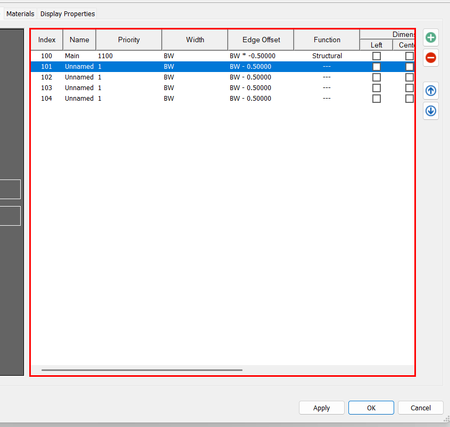
TestComplete detects the table control itself, but none of the internal row/cell objects are exposed
I have a table-like control similar to the one in the screenshot. Using "Add Object" in TestComplete, I can capture the main table object. (object: Aliases.Icad.dlgAECStylesManager.Item.SysListView32) However, when I explore it in the Object Browser, the table exposes only one child object — the header. There are no row objects, no cell objects, and no data nodes visible under the table. Because of this, TestComplete cannot interact with the table using the normal object model (such as row/cell access, FindChild, ClickCell, etc.). My goal is to automate editing based on the row index. For example: Update the “Name” column for the row where Index = 101 (change it to "Testing1"). Has anyone encountered this type of control or found a reliable solution for automating tables that do not expose row/cell objects? Any suggestions would be greatly appreciated. Thanks!320Views0likes10Comments