Android execution and object capture is slow.
I am facing in which for already automated android application execution is happening very slow, also when try to capture any new object then also it is very slow. Is this happening due to emulator or is this the TC issue. I am currently using Android studio using Appium for execution instead of real device? Have anyone faced the slowness?49Views0likes1Comment
Significant interaction latency when using Android device via TestComplete (Appium)
I am currently setting up and using TestComplete for Android mobile testing via Appium (cloud‑compatible approach), and I would like to share feedback regarding the interaction latency when controlling a physical Android tablet from TestComplete. First of all, I would like to clarify that I understand and acknowledge that a certain level of latency is normal and expected when using TestComplete with Appium. According to your documentation, this approach relies on Appium and UIAutomator2, and the device screen is updated through screenshots rather than real‑time video streaming, which naturally impacts responsiveness. That said, in practice, the latency I am observing is significantly higher than expected and impacts usability even for basic exploratory actions. Concrete example Manual execution directly on the tablet: ~40 seconds Same actions performed through TestComplete (viewer + interactions): ~3 minutes 30 seconds This includes only simple interactions (tap, navigation, text input), without any complex gestures or multi‑touch actions. Environment details TestComplete (Mobile Testing module) Android physical tablet (USB‑connected) Appium 2.x with UiAutomator2 Local Appium server (--base-path /wd/hub) Windows workstation I understand that TestComplete is primarily designed for automation execution rather than real‑time manual control, and that some lag is unavoidable. However, the difference in execution time (over 5× slower) raises a few questions: Is this level of latency considered within normal expectations for TestComplete + Appium? Are there recommended settings or optimizations (on the TestComplete, Appium, or Android side) to reduce interaction latency? Are there known limitations or performance thresholds documented for interactive use of mobile devices via TestComplete? My goal is not to use TestComplete as a real‑time remote control, but rather to understand: what level of latency is considered acceptable, and whether there are best practices to improve the experience during test recording and investigation. Thank you in advance for your guidance and for any clarification you can provide.55Views0likes0CommentsTestComplete 15.80: Mobile Recording on real Samsung device does not capture actions
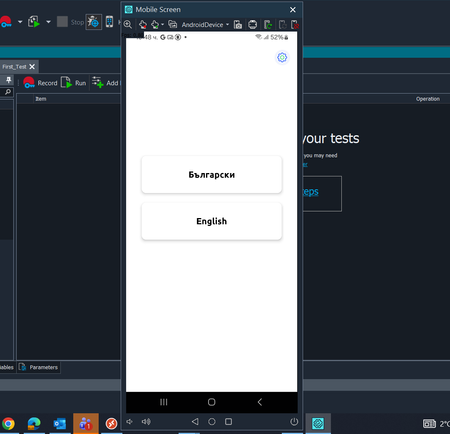
We are using TestComplete v15.80 and recording mobile tests on a real Android device (Samsung). The device is detected correctly and the configuration appears to be fine - the application launches, the screen is visible in TestComplete, and the initial app screen is displayed (see attached screenshot). The issue occurs after pressing Record: we perform several actions in the mobile app (tap/scroll/text input, etc.) but no steps are saved. After stopping the recording, TestComplete generates an empty KeywordTest, as if no actions happened. Expected result: Actions performed during recording are captured as steps in the KeywordTest (or Script). Actual result: The KeywordTest is empty and contains no recorded steps. Questions: 1) What are the most common reasons for mobile recording to produce an empty test when using a real Android device? 2) Are there any required permissions/servicess (e.g., Accessibility / agent) that may block recording if disabled? 3) Do we need to close all Chrome/Edge other applications during mobile recording (we don't expect they affect it, but want confirmation)? Environment: TestComplete: 15.80 Device: Real Android Samsung phone Test Type: Mobile UI recording (KeywordTest)194Views0likes6Comments
Android Image Touch – "Interface Not Supported" Error
Hi Everyone, I'm trying to use the Touch method on an image object from an image set I created in Ranorex Studio. I've set the current device to my locally connected Android device and am running the app via JSON capabilities using a local Appium server. However, every time I attempt to run a method on the image object, I receive the following error: "Python runtime error. Interface not supported." Here’s a simplified version of my test case: capabilities = { "app": "some_apk_path.apk", "deviceName": "droid", "platformName": "Android" } server = "http://localhost:4723/wd/hub" Mobile.ConnectDevice(server, capabilities, 600) Mobile.SetCurrent("droid") set = ImageRepository.ImageSet1 set.AllowNotif.Touch() Environment: Ranorex Version: 15.74.33.7 x64 (Trial) Appium: Local server setup The image set is recognized, but calling Touch() on any image object triggers the error. Is there a compatibility limitation with the trial version, or am I missing a configuration step? Any help would be appreciated!Solved344Views0likes5Comments
Unable to get screenshot from device - Android App
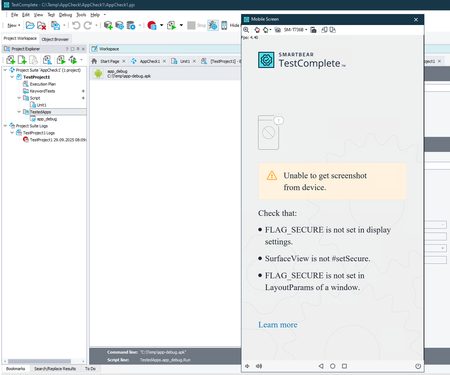
Hi There I'm unable to test a simple example Android App in TestComplete with a connected Android Tablet. The Tablet is connected, the APK is imported as "TestedApp" and can be deployied over TestComplete, but I get everytime the "Unable to get screenshot from device." Message and I can't see anything: TestComplete: Version: 15.77.6.7 x64 Microsoft Windows 10 Pro, 64-bit (10.0 Build 19045) Tablet: Samsung SM-T736B (Galaxy Tab S7 FE 5G) Android: 14 I simply created a new App in Android Studio (Narwhal 3 Feature Drop | 2025.1.3) just to check if a simple Project would be testable: New Project -> Empty Activity ... The listet Check shouldn't be a Problem, this is the Standard-Beginner-App. I Also tryied to implement the mentioned FLAG... but this won't help too. Does anybody have a suggestion? Best regards Lukas113Views0likes1CommentAndroid Image Touch - Interface not supported problem
Hi, I'm trying to use method Touch on object from the Imgae set I've created. I have set the current device to my locally connected device, I'm running the app thru the json capabilities and local appium server. I'm not able to run any method on image object, every time I got the "Python runtime error. Interface not supported" The code of my test case: capabilities = { "app": "some_apk_path.apk", "deviceName": "droid", "platformName": "Android" } server = "http://localhost:4723/wd/hub" Mobile.ConnectDevice(server, capabilities, 600) Mobile.SetCurrent("droid") set = ImageRepository.ImageSet1 set.AllowNotif.Touch() I'm using trial Version: 15.74.33.7 x64477Views0likes5CommentsHow To: Read data from the Windows Registry
Hello all, I have recently learned how to retrieve data from the Windows registry in JavaScript test units. I am using this to return the OS information and application path information. This is very useful when added to the EventControl_OnStartTest event code. This will allow you to return OS information and other needed data at each test run. Some test management systems may provide this information for you or it may be logged in the in data produced in a pipeline run. This will embed the information directly into your test log. SmartBear KB Links: Storages Object Storages Object Methods Storages.Registry Method Section Object Get SubSection Method This bit of code will return the Product Name and Current Build from the registry. This location may vary between OS's so you will want to check this with RegEdit. let Section = Storages.Registry("SOFTWARE\\Microsoft\\Windows NT", HKEY_LOCAL_MACHINE); let regKeyString = Section.GetSubSection("CurrentVersion").Name; let productIdString = Storages.Registry(regKeyString, HKEY_LOCAL_MACHINE, 1, true).GetOption("ProductName", ""); let currentBuildString = Storages.Registry(regKeyString, HKEY_LOCAL_MACHINE, 1, true).GetOption("CurrentBuild", ""); Log.Message("Windows Version: " + productIdString + " Build: " + currentBuildString ) I have also found the need to find and set an application path and work folder in the project TestedApp for running through a pipeline because the pipeline deploys the application to a non-standard path. let Section = Storages.Registry("SOFTWARE\\WOW6432Node\\<_yourSectionName>\\", HKEY_LOCAL_MACHINE); let regKey = Section.GetSubSection(<_yourSubSectionName>).Name; let Path = Storages.Registry(regKey, HKEY_LOCAL_MACHINE, 0, true).GetOption("", ""); let WorkFolder = Storages.Registry(regKey, HKEY_LOCAL_MACHINE, 0, true).GetOption("Path", ""); let appIndex = TestedApps.Find(<_yourAppName>); if (appIndex >= 0){ if(TestedApps.Items(<_yourAppName>).Path != Path){ TestedApps.Items(<_yourAppName>).Path = Path } if(TestedApps.Items(<_yourAppName>).WorkFolder != WorkFolder){ TestedApps.Items(<_yourAppName>).Params.ActiveParams.WorkFolder = WorkFolder; } } else{ Log.Error("TestedApp " + <_yourAppName> + " does not Exist.") Runner.Stop(true); } I hope you find these links and code examples as useful as I have! Have a great day!271Views0likes0Comments
Test Complete not able to click on mobile application and record keyword tests
Hi Team, I have setup a MAC appium server for testing both iOS and Android applications. While testing android applications, I'am able to load the application to the mobile device but I'am not able to click on any options in the mobile application from Testcomplete . However Once I load the application to mobile, I can directly click on the mobile to navigate within the application. Another issue is that even if I do all the navigations in the phone directly and try to record keyword test , no test steps are getting recorded. Please help on this issues.276Views0likes4Comments