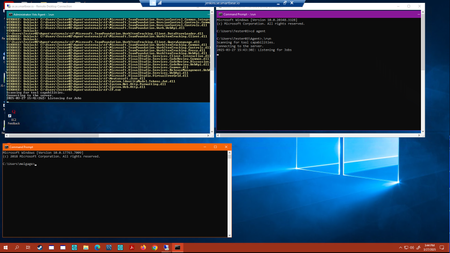
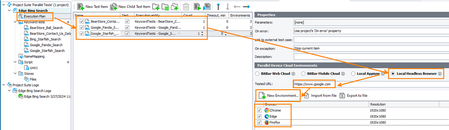
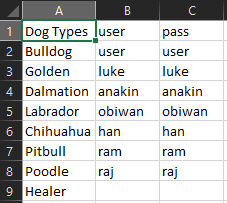
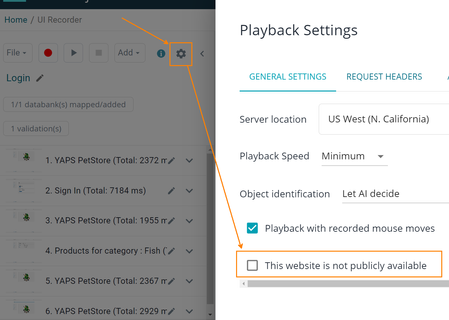
ContributionsMost RecentMost LikesSolutionsAzure DevOps Pipelines - "Headless" VMs For those that don't always check the Tech Articles section, there's new post discussing how to run Azure DevOps pipelines on VMs without having to maintain a dedicated terminal session from your computer. Azure DevOps Pipeline - Running on "Headless" VMs Azure DevOps Pipelines - Running “Headless” Tests One of the most common requests I get from TestComplete customers who run their tests from Azure DevOps pipelines is: “How can I execute my tests on remote Virtual Machines (VMs) with self-hosted agents without needing to maintain an active terminal session?”. Note: This document does not detail setting up the Azure DevOps pipeline or the self-hosted Azure agents. That process can be found in the TestComplete documentation here: Integration With Azure DevOps and Team Foundation Server via TestComplete Test Adapter | TestComplete Documentation There are some details in the TestComplete documentation on how to accomplish this type of configuration, but I’ll go through the full process and how to configure this solution with two options. That documentation can be found online: Disconnecting From Remote Desktop While Running Automated Tests | TestComplete Documentation The first option is to set up multiple virtual machines (VMs). You start by logging into one VM via Remote Desktop Protocol (RDP). From there, you connect to other Tester VMs running Microsoft Agents. After issuing a command to release the RDP session back to the Admin user, the Tester VMs remain active, allowing TestExecute to run tests triggered by the pipeline. The second option is to use a single, high-performance VM to host all remote sessions and agents. Here, multiple Tester sessions run on the same VM, each with its own agent handling pipeline requests. Each session runs its own TestExecute instance as long as enough floating licenses are available. The Admin session connects to the VM and then accesses each Tester session via RDP using the VM’s loopback address (e.g., 127.0.0.2). However, this method requires the VM to be part of a Microsoft Domain to support more than two simultaneous RDP sessions. Here are the commands we’ll be taking advantage of in this operation. To gracefully disconnect from an active RDP terminal session, converting it into a console session, open a Command Prompt (CMD) in the Admin user session and use the following: %windir%\System32\tscon.exe RDP-Tcp#NNN /dest:console where RDP-Tcp#NNN is the ID of your current Remote Desktop session, for example, RDP-Tcp#5. You can see it in the Windows Task Manager on the Users tab, in the Session column. The Session column is hidden by default. To show it, right-click somewhere within the row that displays CPU, Memory, and so on, then choose Session in the opened context menu. Our documentation also includes an easy-to-use batch file option that can be run as an Administrator to more easily disconnect from the remote Admin session. Create a batch file with this code: for /f "skip=1 tokens=3" %%s in ('query user %USERNAME%') do ( %windir%\System32\tscon.exe %%s /dest:console ) Create a desktop shortcut to this file. To do this, right-click the batch file and select Send to > Desktop (create shortcut). In the shortcut properties, click Advanced and select Run as administrator. Double-click this shortcut on the remote computer (in the Remote Desktop Connection window) or call this batch file at the beginning of your tests (provided that the tests are run as an Administrator). To gracefully reconnect to a remote console session, use the following command in an open CMD prompt: mstsc -v: servername /F -console where the servername is the address of the remote VM hosting the Admin session. Option 1: Multiple VMs in the testing network. RDP connect to and set up the remote VMs to be used for the Tester Agents and have their self-hosted Microsoft agents active and listening for jobs, then disconnect the RDP sessions. RDP connect to the VM to be used as the “Admin” session. From the “Admin” VM, RDP connect to each Tester VM. (Connecting to more than 2 remote RDP sessions will require the VMs to be on a Domain with the appropriate settings configured to allow for more than 2 remote sessions.) Your Admin system should look something like this image where I am connected to 2 of my Tester VMs with their agents listening for jobs: Ensure that your Agents are active in the Azure DevOps Agent pool: Disconnect from the Admin user session using the prepared batch file or the direct command with the RDP session ID: Run the pipeline to validate that tests execute as expected: Reconnect to the Admin VM to see test results from the running agents using the command: mstsc -v: servername /F -console Option 2: Using a Single Virtual Machine RDP connect to the VM to be used for testing using the “Admin” account. I’m using my Tester01 account in this demonstration. RDP connect to the other users on the same VM using the 127.0.0.2 loopback address. Run the Microsoft self-hosted agents on these connected sessions. Disconnect from the Admin user session using the prepared batch file or the direct command with the RDP session ID. Prepare the pipeline. In my case, as I am not on a Domain so I am limited to ONE RDP session from my “Admin” user. I’m disabling the agent on Tester03 since we are using Tester02 for our pipeline. Execute the pipeline and validate successful test executions: Reconnect to the “Admin” session to make changes to the configuration as needed: mstsc -v: servername /F -console Conclusion In conclusion, these two methods provide testing options from Azure DevOps using VMs without requiring a dedicated terminal session from your development system. They still require that session, but the solutions provide options to workaround that “directly monitored” connection. These solutions also give you the security of running them on VMs in your environment; easily secured, controlled, and isolated by your firewall and security requirements. Full demonstration video link: Azure DevOps Pipelines - Remote "Headless" Testing TestComplete: Headless Browser Testing in Parallel In addition to standard web test execution, with the Intelligent Quality Add-on TestComplete supports running tests from an Execution Plan in a Headless browser environment. Browser options in this environment can be configured for Chrome, Edge, and Firefox, but require the installation of the supported web drivers for each of these browser types. More detailed information can be found in our support documentation on how to setup these drivers if TestComplete does not install them automatically when the environments are configured. Headless Browser Testing in TestComplete Here are some quick links to sites to download these web drivers as well: Chrome Edge Firefox The First Step: Running Parallel Tests in Sequence To configure the desired testing environments in the Execution Plan, one simply needs to add the desired keyword tests or scripts to the Execution Plan, choose the Local Headless Browser option, enter the desired endpoint URL, and configure the desired test environments. It should be noted that each test in the Execution needs to be configured for the URL and the test environments individually, and that each environment can only be configured once for each test for each resolution option available (there are up to 5 resolution settings for each browser). The image below details these configuration options. In this setup, each test in the Execution Plan will execute on the configured environments in parallel when the Execution Plan is started. The test will fire sequentially as shown here running “BearStore_Contact_Us” on the three environments simultaneously, then “Google_Panda_search” on its configured environments, and finally, “Google_Starfish_Search” on the environments configured for that test. The following figure shows the successful completion of this execution plan. Note the start times for each test showing them running in parallel, then executing the next keyword test in the Execution Plan sequence, also in parallel. We can even up the count for each keyword test. This will result in running each test case the set number of times, also in sequence, for the given count, before moving on to the next test case. With the resulting test log showing us those parallel test runs in sequential order: The Next Step: Running Parallel Tests in Parallel Now that we have run our three keyword tests in parallel environments, but in sequential order, let’s run them in parallel environments, in parallel! To accomplish this task, we need to setup a parallel Group in our Execution Plan and add our desired tests into this Group. Then configure the Local Headless Browser URL and Environments and run the Execution Plan. Since we are now launching all of our test cases, 3 test cases x 3 configurations x 3 execution counts, TestComplete will be running 27 headless browser sessions. As you can imagine, this is extremely processor intensive. My laptop, with a few applications running, including TestComplete, hovers between 25-50% CPU utilization. Starting this test run, will easily stress my CPU at 100% for most of the duration of the test. Our log shows all 27 tests starting at the same time. The test results also show several failures for very simple tests, most of which are associated with failures to reach the designated sites, likely caused by lack of system resources or over-taxed network connections. In conclusion, Local Headless Browser testing can be a very useful tool for running tests in “Sequential-Parallel” or “Parallel-Parallel” modes, but system resources are a factor to consider to ensure your tests are running cleanly and successfully without generating false failures. Re: Virtual users with individual credentials. Greg, You can accomplish this using Databanks. Databanks allow you to map information to specific actions and inputs in your scripts. They can be configured to allow for Random, Sequential, and Unique options for reading data from the attached comma-, or tab-deliminted file. For your case, you would want to employ the Unique option as detailed in the documentation. Data Driving with LoadNinja Databanks Here's a sample of a file I use for my demonstrations, with user and pass columns. For Unique data, you'll need at least as many rows as you have virtual users in your load scenario. Cheers, Mel Re: how do i run scenario with 20 users without using tunnel Jyo, The first thing to check in this case is the settings in the Recorder playback options for the particular scripts you are including in your Load Scenario: For each of those scripts, please make sure the "This website is not publicly available" is unchecked. This will prevent the load scenario from trying to implement the tunnel. Cheers, Mel Re: SVN integration failure with Windows desktop GUI Which version of the Windows Collaborator Client are you currently trying to get configured for use with SVN? We have identified a bug with the newer Collab Clients that is currently in development for resolution. Please visit our installers archive and try your configuration using Client version 14.0.14000, or older. Installers Archive Cheers, Mel Re: Unable to add checklist via Java API Looking at your JSON, the only things you are missing are the " " around the reviewId and your second parameter should be "checklistId". Here's an exmaple of the code snippet I ran on my local server to add checklist #2 to my review #449: [{"command" : "SessionService.authenticate", "args" : { "login" : "xxxxxxx", "ticket" : "xxxxxxxxxxxxxxxxx" } }, {"command" : "ReviewService.addChecklist", "args" : { "reviewId" : "449", "checklistId" : "2" } }] My review before executing this command shows checklistId #1 (Development Checklist) available on the review. Executing the JSON detailed above adds the second checklist (#2 - Cross Team Communication) to that same review: Please note that the checklists you want to add through the JSON API must be available to the template in use on that particular review. Cheers, Mel Re: Query against Code Collaborator installation using repsonse.varfile rajburnwal, Looking at your attached screenshot, it would appear you are missing a "c" in "connector" in your mysql JDBC connector path. Check you varfile for that typo, please. Let me know if that resolves your issue. Cheers, Mel Re: LoadNinja vs TestComplete Michael, LoadNinja and TestComplete are different in their intended purposes. LoadNinja is SmartBear's load delivery application. It is hosted by SmartBear in Amazon web-services and is designed for ease-of-use in developing scripts using the bulit in recording tool, to provide load to web applications and APIs for the purpose of evaluting those systems under loaded conditions. TestComplete is SmartBear's premiere UI functional testing tool. It also has a built-in recorder for easily creating tests to evaluate the functional perspective of a given web application or desktop application. It is much more robust than LoadNinja in this regard. Ideally, you can use TestComplete to create tests to functionally test your sites and web applications, then use LoadNinja to build load tests to see how those sites stand up under load. For more detailed information, please visit our site, or reach out through the online form for a representative to contact you. LoadNinja: https://loadninja.com/features/ TestComplete: https://smartbear.com/product/testcomplete/features/ Cheers, Mel Re: Is it possible to import a checklist from Word to be used as a Checklist Template? Creating Checklists in Collaborator must be done within the webUI for the tool. Copying and pasting your line items as you currently do, is one of the easiest ways to refine your lists and get them incorporated into Collaborator. Cheers, Mel

 StaffStaff