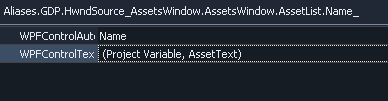
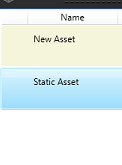
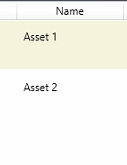
ContributionsMost RecentMost LikesSolutionsTest Run Progress/ Number of Tests During the running of tests it would be good the have the ability to see the progress of the run. I use scenarios and run my tests from the execution plan as it has the timeout. I some of the feature files I use have 20+ scenarios, and can take more than 40 minutes to run. it would be beneficial to at lease see how many are to be run and how many have run i.e '50/100'. Ideally it would be on the test runner bar. Re: Keyword Test Names not in Sync with Execution Plan TInTech This is a bugbear of mine, I use scenarios and the best way I found around it was to create separate folders in the execution plan for groups of tests. So if I needed to update all test in the folder I would select them all, delete them, then drag the scenario files I needed to the folder in the exe plan. I'm not sure how it would work with keyword tests, maybe you could try putting the tests in to a folder and see is you can drag the folder into the exe plan? I hope this helps Wes Re: Objects getting failed in a Keyword test because of Name Mapping structure keep on updating Hi Raghunandanits, what attributes are in the properties section for targeting the element? It is likely that you have an attribute selected where the value changes each time the application is run. I have had this happen many times and it causes exactly what you're seeing as it thinks it's a separate element. Re: Enable support for TypeScript Hi SmartBear, how after 3 years has this not been picked up? brianm384 makes a great point here. thanks Wes Re: Unable to assert text in WPF ListView item rraghvaniI have found the fix for this issue. If you add the WPFControlText with no value to the properties list in the name mapping. it will change the way TestComplete targets the ListView. which allows property checks that look like this - aqObject.CheckProperty( Aliases.GDP.HwndSource_AssetsWindow.AssetsWindow.AssetList.WPFObject("ListViewItem", "", row).WPFObject("ContentPresenter", "", 2).WPFObject("Name"),"Text", cmpContains, name) in this code I am only manipulating the "row" and "Name" is the column header Re: Unable to assert text in WPF ListView item okay so using this above it just consistently targets the text in the 1st row of the name column and doesn't seem to know about any other rows. I then tried highlighting the whole of row 2 before hand but it still went back to Row 1. so I have had to add the WPFControlText property to the name mapping and hook that up to a project variable. then define the variables value as the text I'm looking for then do the property check. as long as it's there it pass but I will just have to accept that if it's slightly wrong it will say it doesn't exist but at least it will fail or pass when it should. Re: Unable to assert text in WPF ListView item it should but it doesn't. Here is how the list looks in the failing test and this is the code that does the check. and this is what I get in the test report even though the item is there. even though I am specifically asking for the the second item it's still checking against the first Re: Unable to assert text in WPF ListView item rraghvanijust the WPFControlAutomationID Unable to assert text in WPF ListView item I am trying to assert the text of a specific cell in a WPF ListView item. but they are both identical except for the text. this is what I'm using to do the assertion but it's very flaky. It will always target "Asset 1" correctly when asked but will only sometimes target "Asset 2" when asked otherwise it targets the first in the list. Does anyone know how you can consistently target the cell you want when all attributes are identical? SolvedRe: Textbox not found during test rraghvaniThank you, yes the mapping for the dialog window 2 levels above had a property 'WindowCaption' that referenced 'Details for ...' I deleted it and the one nameText worked for both windows.