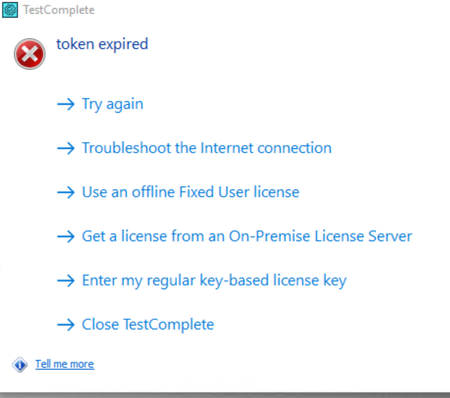
token expired error when opening App


 Champion Level 3
It looks like the missing file (testcomplete15.chm) is not the real cause — TestComplete can run without it. The symptoms you’re seeing (“token expired” followed by “unverified login”) usually point to issues with SmartBear ID-based licensing being unable to verify or refresh the authentication token.
A few things to check:
2. Verify your Windows system clock. If the system time, timezone, or NTP sync is off, TestComplete treats authentication tokens as expired. Even a small time drift can cause “token expired” or “unverified login.” https://support.smartbear.com/testcomplete/docs/licensing/key-based/troubleshooting/the-system-time-on-your-computer-has-been-changed.html
3. Clear locally cached SmartBear licensing and credential data. Sometimes the cached SmartBear ID token or local licensing files become corrupted. You can clear them by:
After clearing these, restart TestComplete and sign into your SmartBear ID again.
4. If still not resolved contact support https://support.smartbear.com/testcomplete/docs/licensing/getting-support-licguide.html
🤖 AI-assisted response
👍 Found it helpful? Click Like
✅ Issue resolved? Click Mark as Solution